How to Sync Your Corporate Exchange Calendar with a Personal Calendar
Corporate Exchange or Microsoft 365 often blocks direct connections from external tools. Here's how to make sync work even in that case.
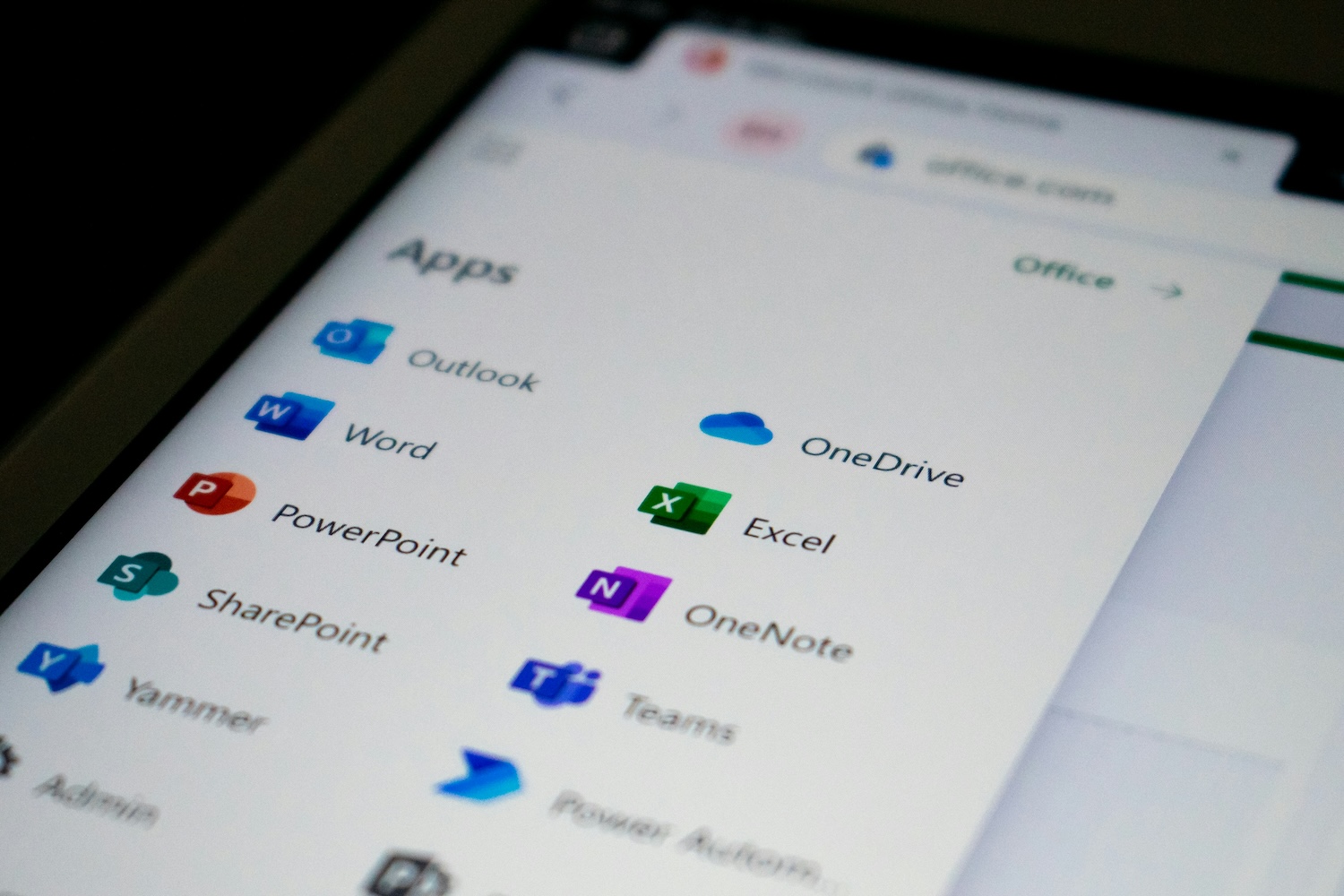
Do you use Microsoft Exchange or Microsoft 365 at work and Google Calendar or Apple iCloud at home? Then you probably know the feeling of scheduling personal plans at exactly the time your company blocked with a meeting. Or the reverse — a colleague drops a meeting into your calendar without knowing you have a doctor's appointment at that time.
The solution is simple: sync your work and personal calendars. In practice, however, there's sometimes one obstacle — corporate IT policy.
Why does Exchange cause problems?
Many companies have their Exchange server configured so that it doesn't allow direct connections from external applications. This is understandable — the company wants to protect sensitive data about meetings, attendees, and internal matters. Standard API-based sync methods may therefore not work.
But that doesn't mean you're out of luck. SyncMyDay offers an alternative sync method that works even in environments with strict security policies.
The solution: Email-based sync
SyncMyDay can sync calendars using email invitations in .ics format. Here's how it works in practice:
The principle
When a new event appears in your source calendar, SyncMyDay sends a standard calendar invitation (.ics) to the email associated with the target calendar. Exchange processes this invitation as a regular meeting and automatically adds it to the calendar. No special API, no violation of corporate policy.
Setup steps
1. Connect your personal calendar — Connect Google, Apple iCloud, or another calendar using standard OAuth authorization.
2. Add your work email — Instead of directly connecting your Exchange account, enter your corporate email address. SyncMyDay will use it as the destination for calendar invitations.
3. Create a sync rule — Set up sync from your personal calendar to your work calendar. When you block time in your personal calendar, SyncMyDay sends an invitation to your corporate Exchange, which automatically accepts it.
4. Set up the reverse direction — For full two-way sync, you can also configure forwarding of invitations from your work calendar to your personal one.
What gets transferred and what doesn't?
This is where it's important to highlight the privacy principle that SyncMyDay is built on. During sync, only event start and end times are transferred. Event titles, descriptions, attendee lists, and attachments never reach the target calendar. Your corporate data stays safe and your personal meetings stay private.
Common concerns answered
Will corporate IT complain?
Email invitations are a standard Exchange feature used by anyone who's ever sent a meeting invite. SyncMyDay doesn't need any special access to corporate infrastructure.
Does it work with on-premise Exchange?
Yes. Because sync happens via email, it doesn't matter whether the company uses Exchange Online (Microsoft 365) or its own Exchange server. As long as the employee can receive email invitations, sync will work.
What if I delete an event?
When you cancel an event, SyncMyDay automatically sends an updated invitation with a cancellation, so the blocking event is removed from the target calendar.
When to choose email-based sync?
Email-based sync is the ideal choice in these situations:
- Corporate IT doesn't allow connecting external apps to Exchange
- You don't want to ask the IT department for an exception or special permissions
- You need a quick solution without complex setup
- You work as a contractor or consultant with email-only access
💡 Pro tip:
If your corporate Exchange does allow direct connections, you can of course use standard API-based sync — it's faster and offers more filtering options.
Conclusion
Strict corporate security policies don't have to be a barrier to calendar sync. With SyncMyDay's email-based sync, you can connect your personal and work calendars in minutes without involving your IT department.
Start syncing your calendars today!
No double booking, no stress. SyncMyDay handles it automatically.
✓ 14 days free • ✓ No credit card • ✓ Instant activation