Connect Apple iCloud
Connect Apple iCloud using CalDAV with an app-specific password. Apple requires one for third-party apps when you have Two-Factor Authentication enabled, which is required for all Apple accounts.
Prerequisites
Before you begin, make sure you have:
- An iCloud account (Apple ID) with calendars
- Two-Factor Authentication enabled (enabled by default for all accounts)
- Access to appleid.apple.com to generate an app-specific password
Generate an app-specific password
-
Go to Apple ID settings
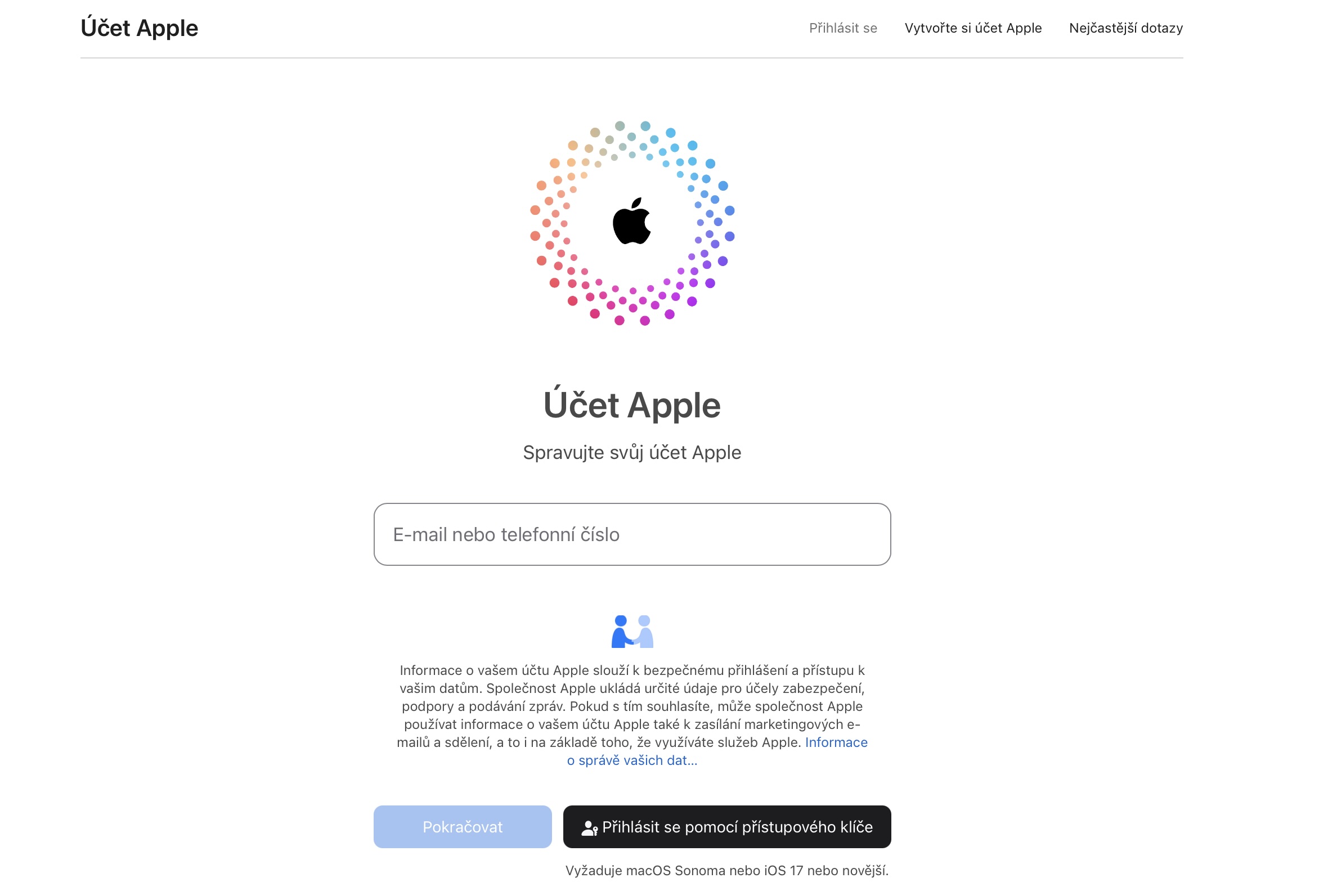
Open your browser and go to appleid.apple.com. Sign in with your Apple ID email and password.
 (opens the full-size image)
Apple ID login page -
Authenticate with two-factor
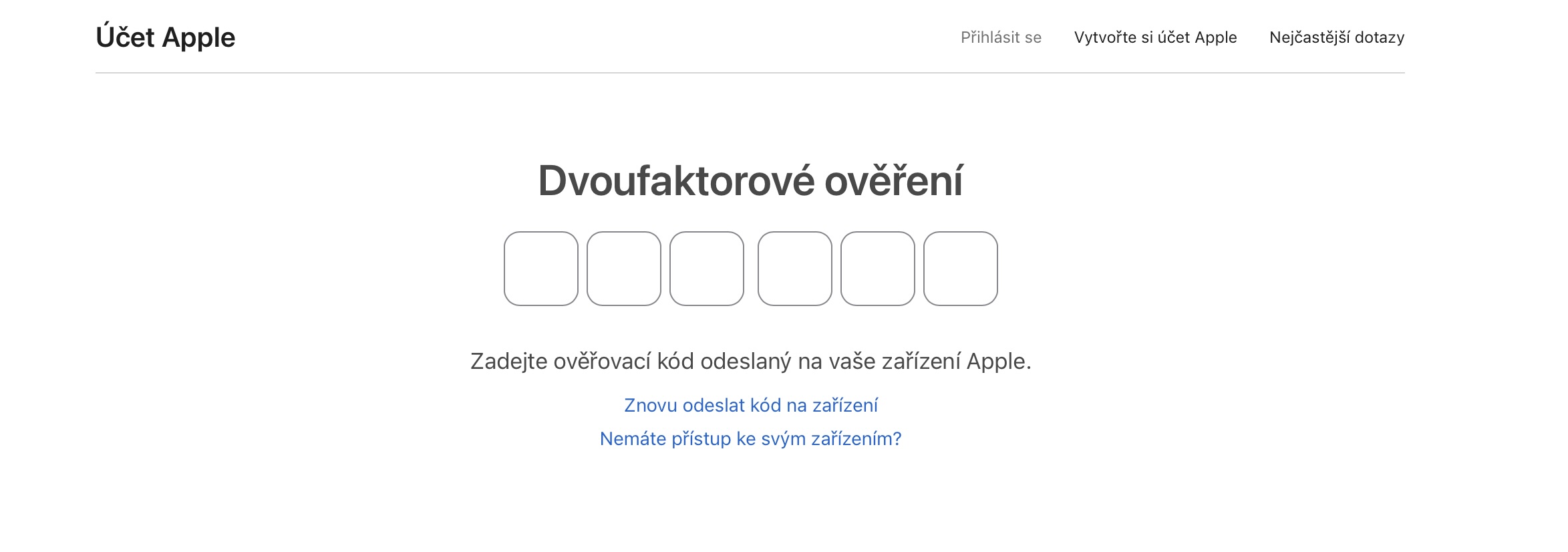
Apple will send a verification code to your trusted devices (iPhone, iPad, Mac). Enter the 6-digit code when prompted.
 (opens the full-size image)
Two-factor authentication code entry -
Navigate to the security section
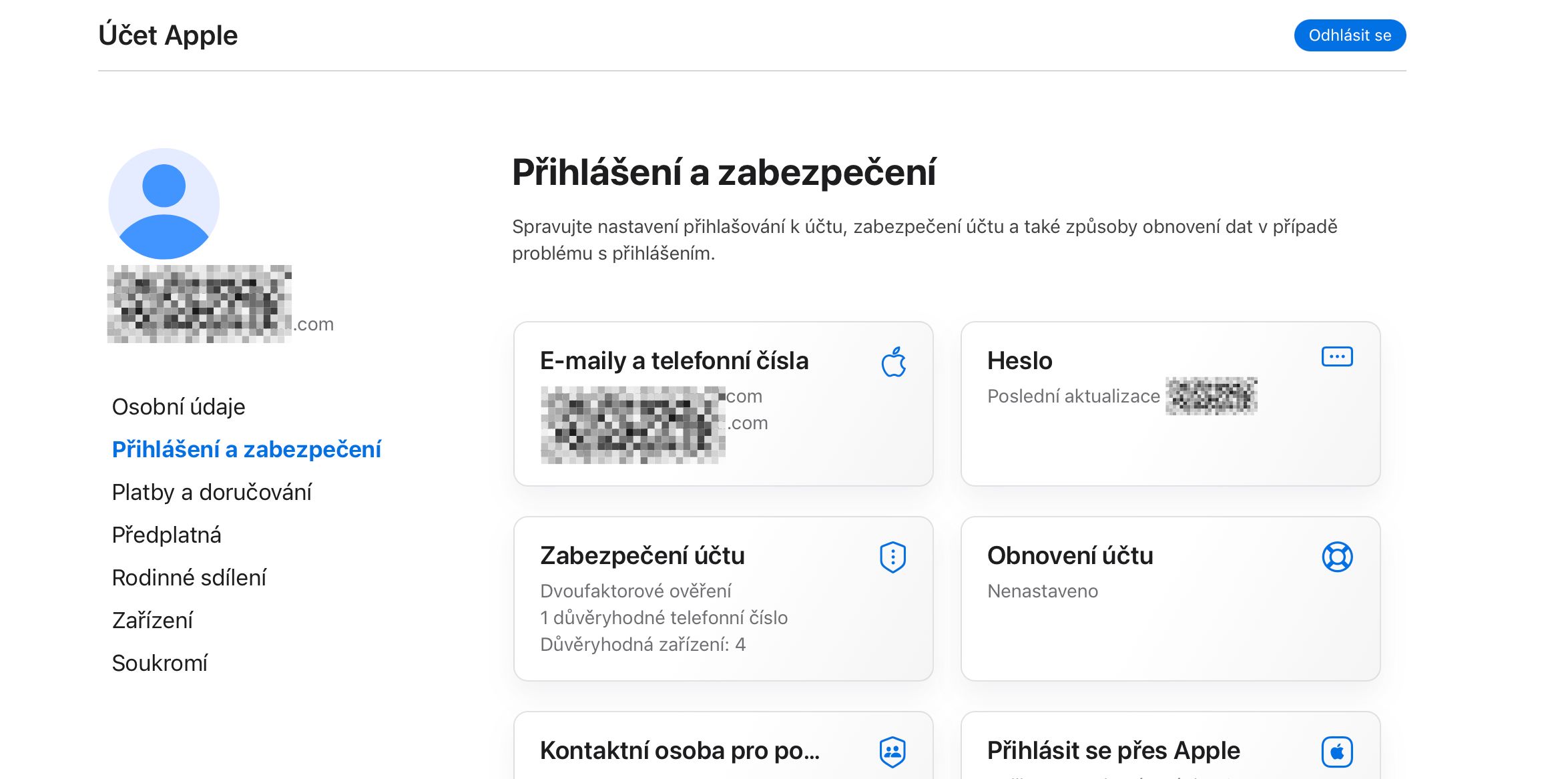
Once logged in, find and click on the Sign-In and Security section.
 (opens the full-size image)
Apple ID account page with Sign-In and Security section -
Click “App-Specific Passwords”
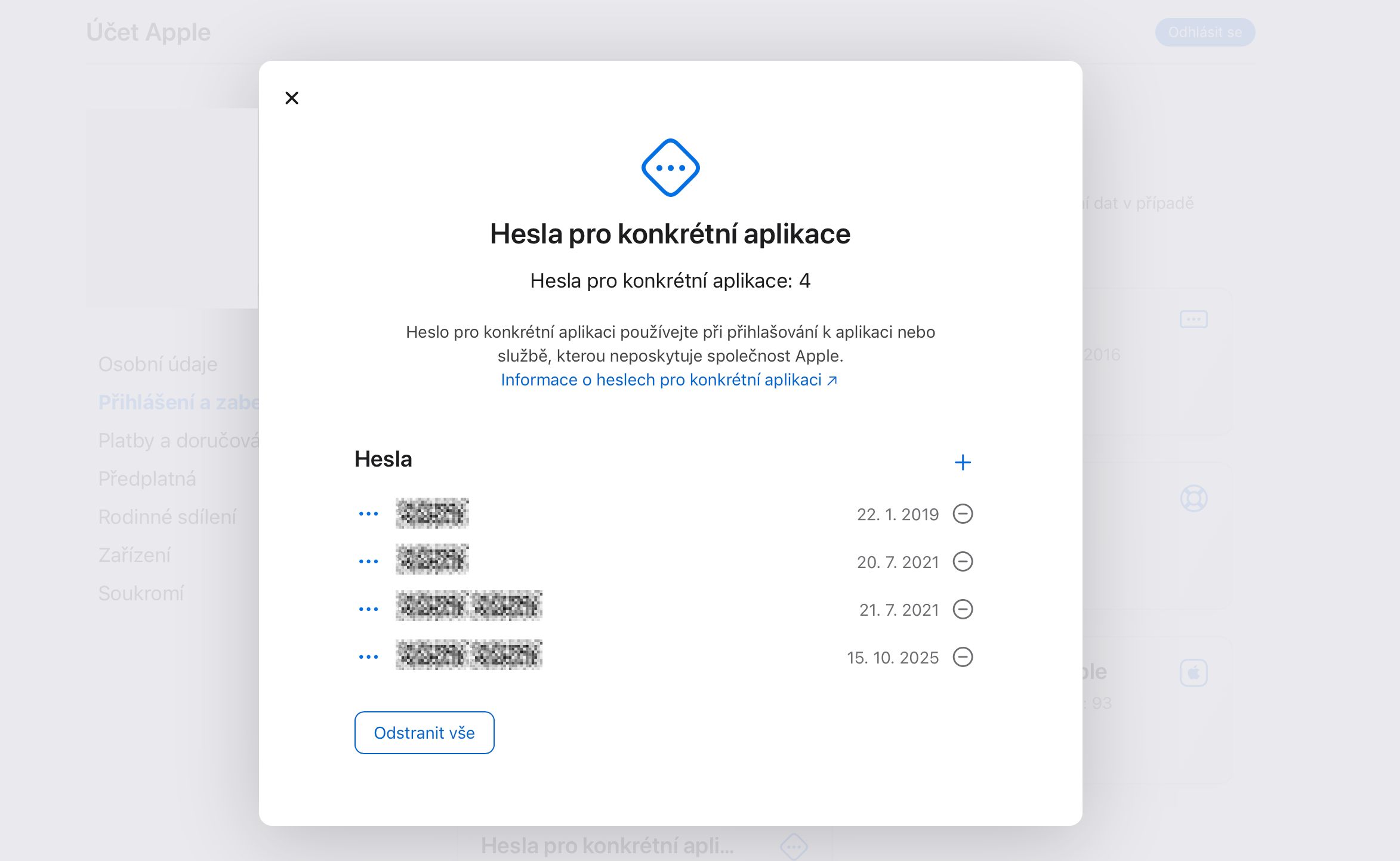
In the Security section, scroll down until you find App-Specific Passwords and click on it.
 (opens the full-size image)
Security settings with App-Specific Passwords option -
Generate a new password
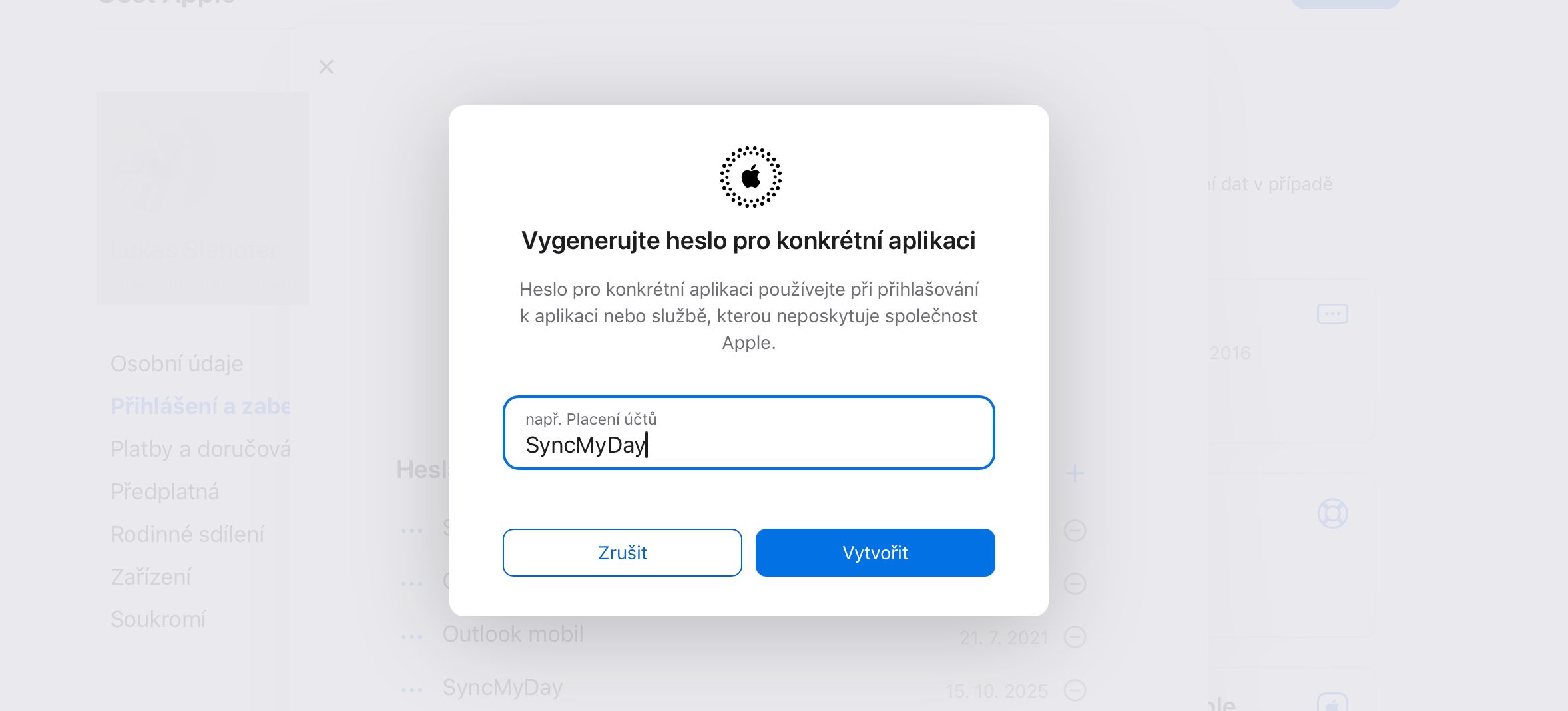
Click the Generate an app-specific password button (or the + icon). When prompted for a name, enter something descriptive like:
SyncMyDaySyncMyDay Calendar Sync
 (opens the full-size image)
Dialog for entering app-specific password name -
Copy the password
Apple will generate a password that looks like this:
abcd-efgh-ijkl-mnop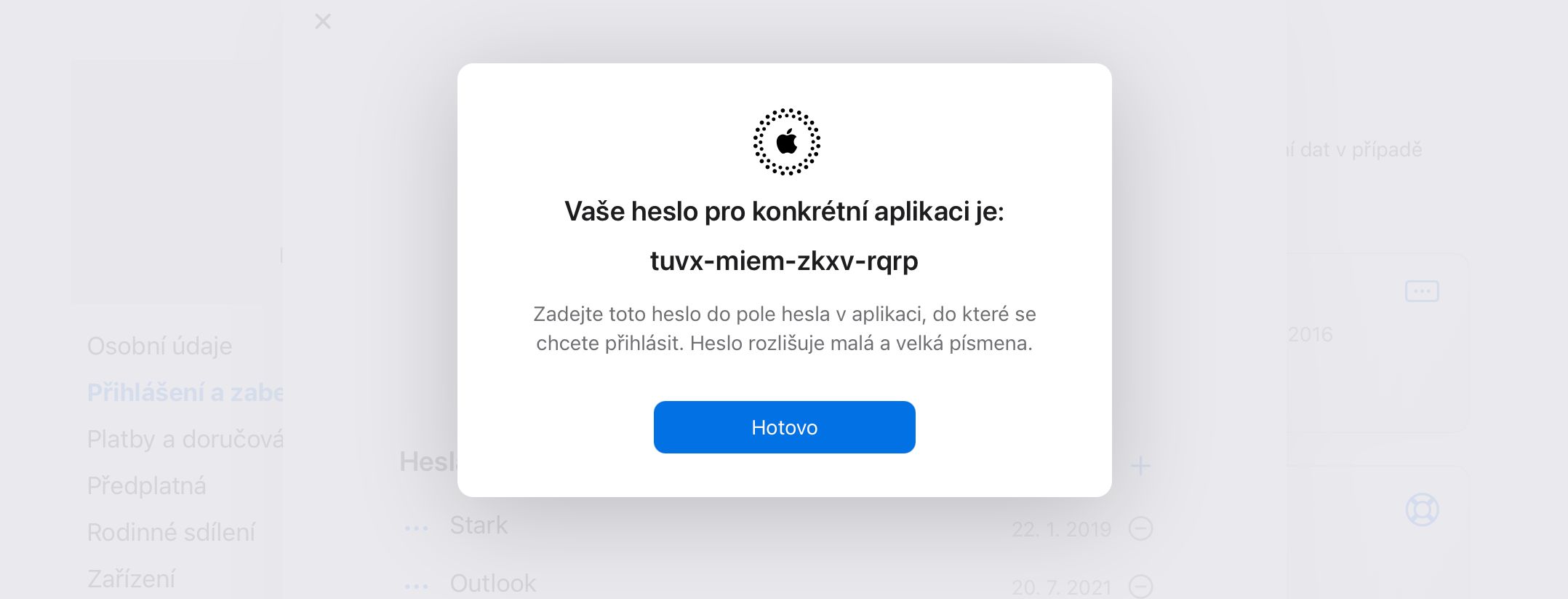 (opens the full-size image)
Generated app-specific password displayed
Connect your iCloud calendar in SyncMyDay
-
Go to Calendar Connections
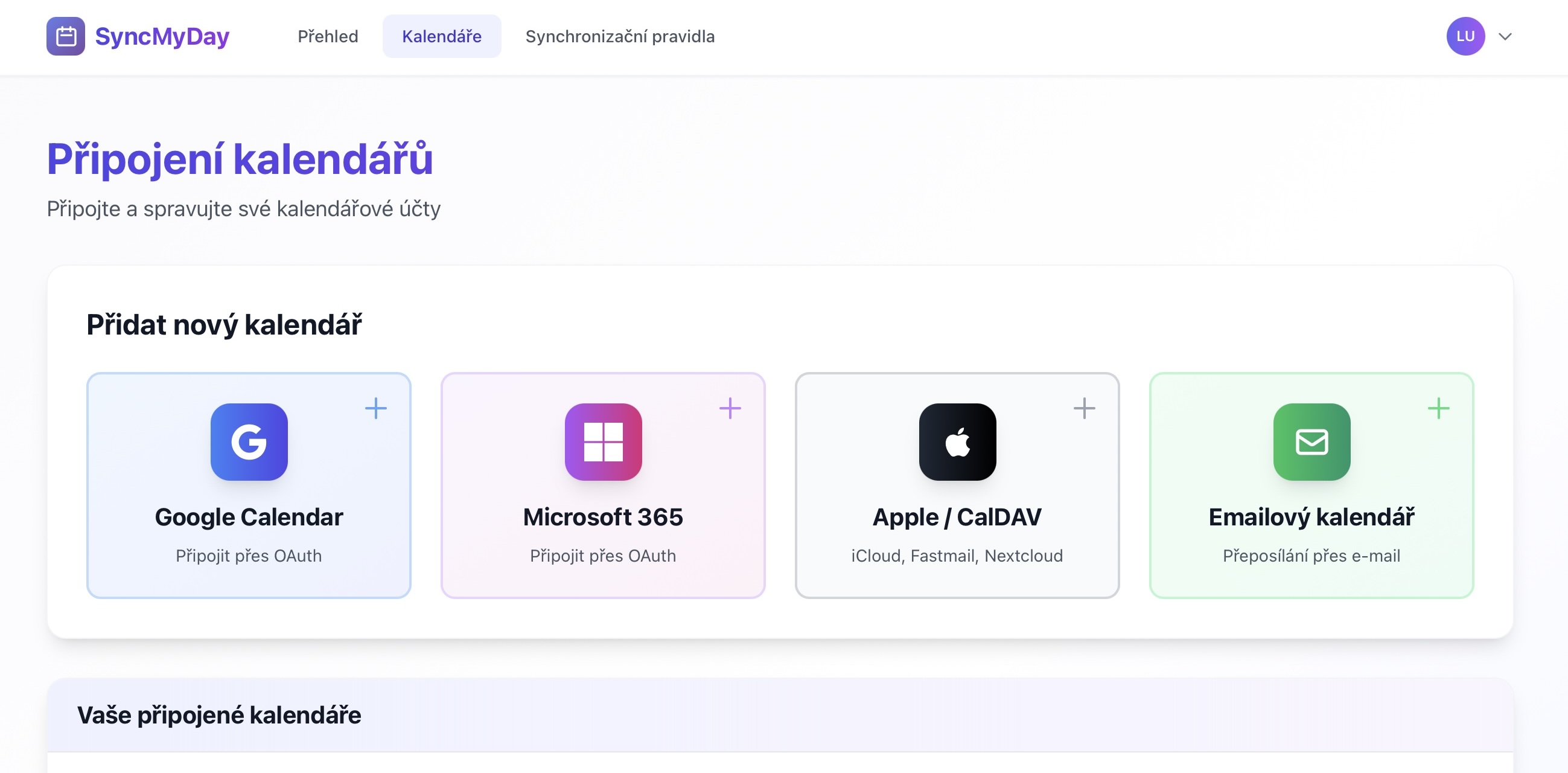
Return to SyncMyDay and navigate to Calendars in the menu, or go directly to the Calendar Connections page.
 (opens the full-size image)
SyncMyDay dashboard with Calendars menu -
Click “Apple / CalDAV”
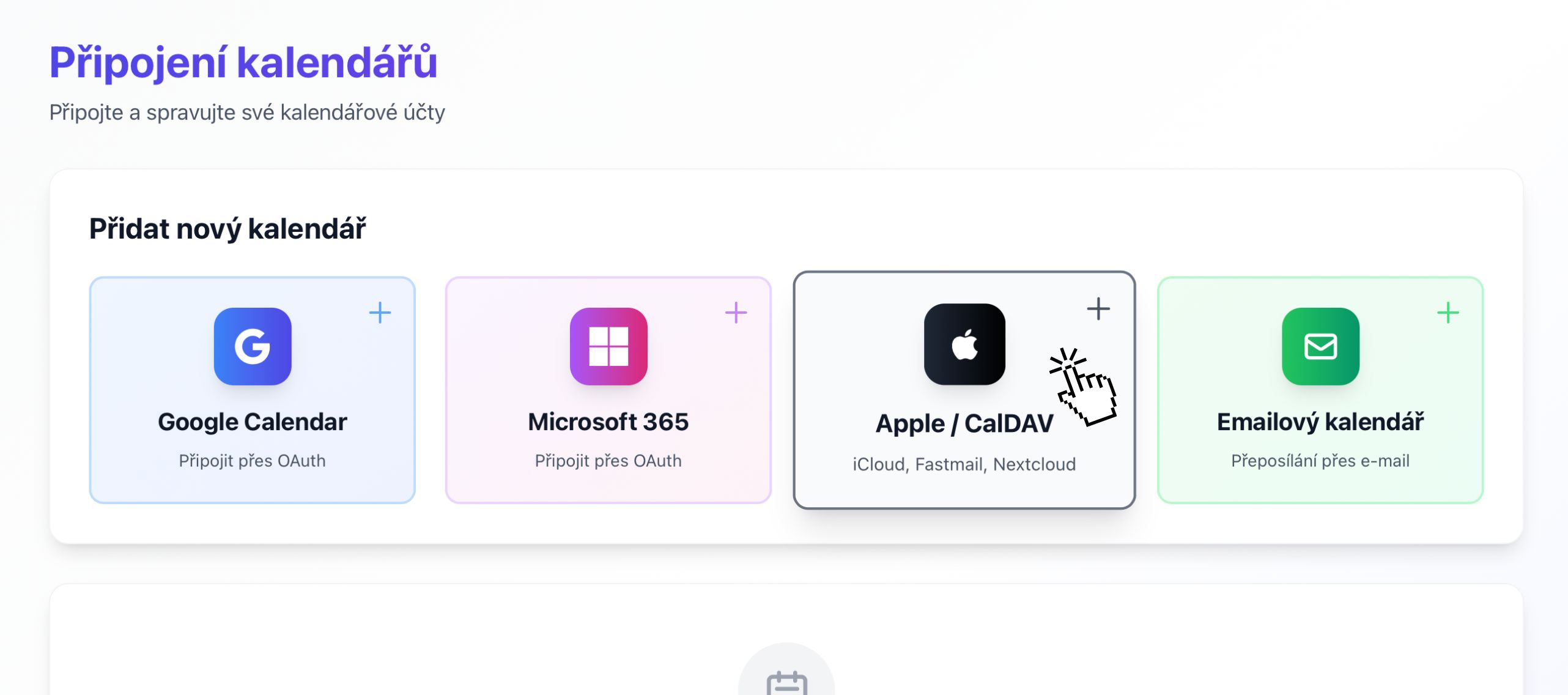
Find and click the Apple / CalDAV button with the Apple logo.
 (opens the full-size image)
Calendar providers with Apple iCloud option -
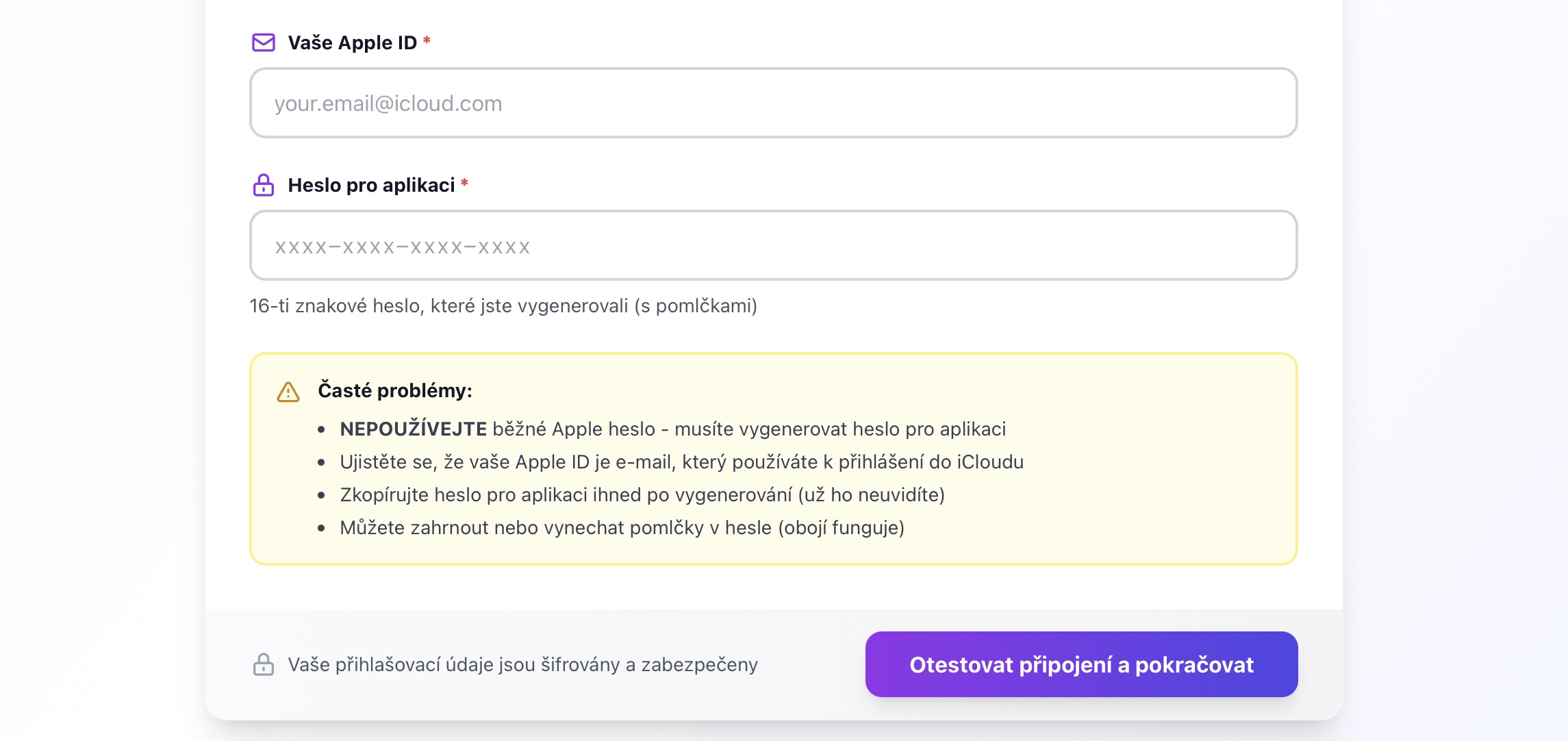
Enter your credentials
Fill in the connection form:
- Email: your full Apple ID email (e.g., your.email@icloud.com)
- Password: paste the app-specific password you copied from Apple (including the dashes, or without — both work)
 (opens the full-size image)
iCloud connection form with email and password fields -
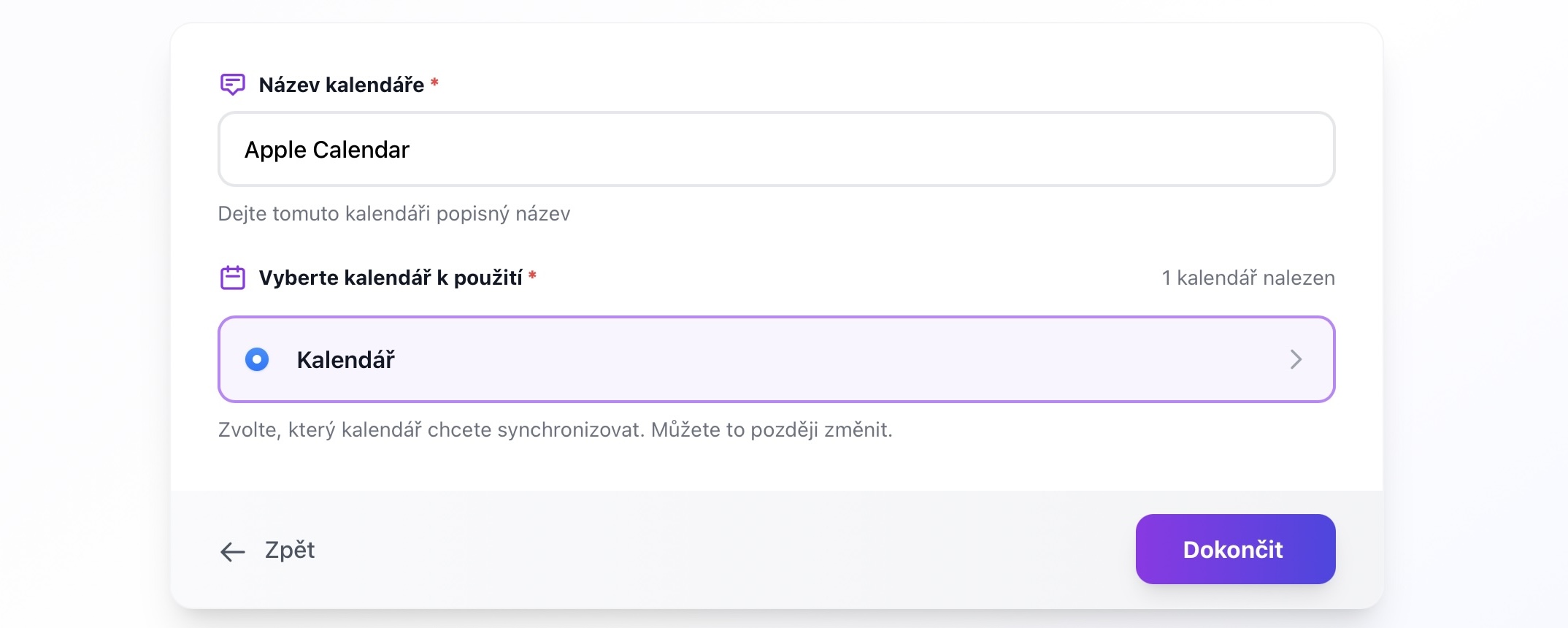
Select calendars
After connecting, SyncMyDay will fetch your iCloud calendars. Select which ones you want to sync. Common iCloud calendars include:
- Home — your default personal calendar
- Work — if you’ve created a work calendar
- Family — shared family calendar
- Any custom calendars you’ve created
 (opens the full-size image)
Calendar selection with iCloud calendars -
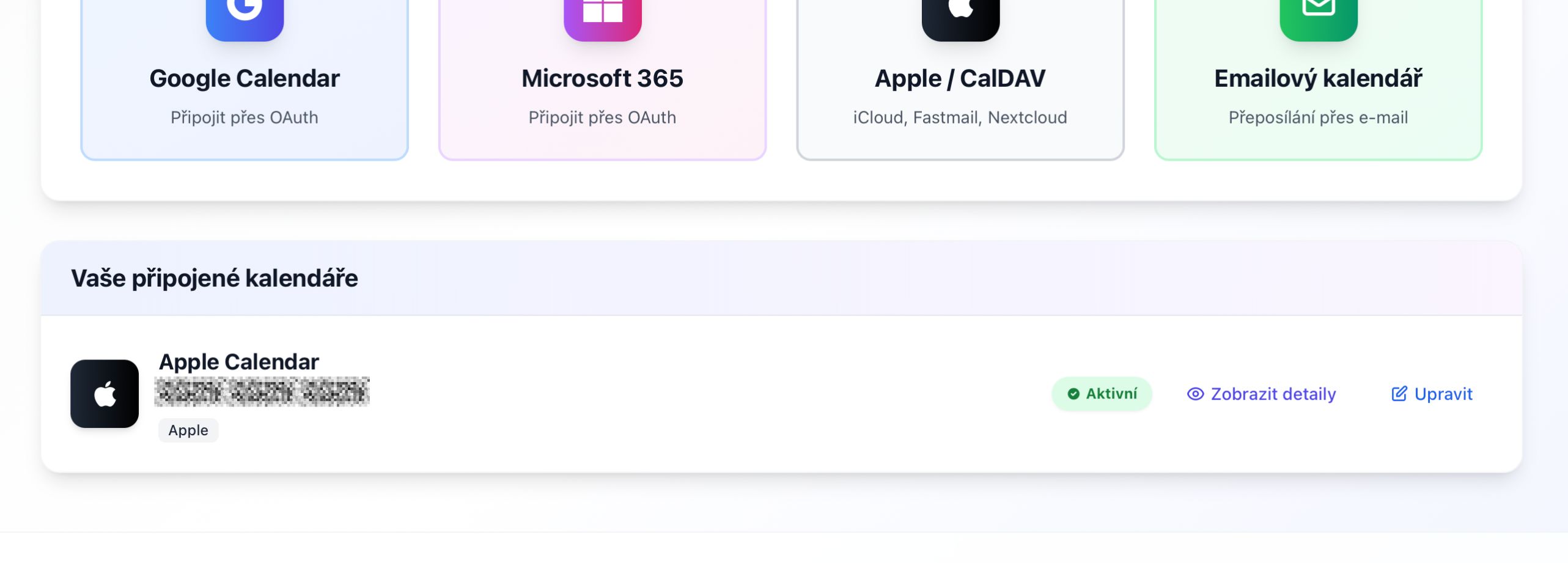
All done
Your Apple iCloud calendar is now connected. You’ll see it in your calendar connections list.
 (opens the full-size image)
Successfully connected iCloud calendar
Troubleshooting
“Authentication failed” or “Invalid credentials”
Common causes:
- Used your regular Apple ID password instead of the app-specific password
- Typo in email address or password
- App-specific password was revoked
Solution:
- Double-check you’re using the app-specific password, not your regular password.
- Generate a new app-specific password and try again.
- Make sure your email is correct (include @icloud.com or @me.com).
I don’t see the “App-Specific Passwords” option
This usually means Two-Factor Authentication isn’t enabled on your account.
Solution:
- Go to Apple ID settings at appleid.apple.com.
- Navigate to Sign-In and Security.
- Enable Two-Factor Authentication.
- Once enabled, the App-Specific Passwords option will appear.
Sync is slow (15-minute delay)
This is normal for iCloud calendars. Apple’s CalDAV protocol doesn’t support real-time webhooks like Google or Microsoft.
Why? We poll iCloud every 15 minutes to check for changes. This is the standard approach for CalDAV providers and balances responsiveness with server load.
Alternative: If you need instant synchronization, consider using Google Calendar or Microsoft 365 instead, which both support real-time webhooks.
How do I revoke an app-specific password?
If you need to revoke access:
- Go to appleid.apple.com.
- Sign in and navigate to Sign-In and Security.
- Click on App-Specific Passwords.
- Find “SyncMyDay” in the list.
- Click Revoke next to it.
You can also disconnect the calendar from SyncMyDay’s Calendar Connections page, and we’ll stop using the credentials.
Next steps
Technical details
For developers and IT
CalDAV protocol
Apple iCloud uses the CalDAV protocol (RFC 4791):
- Server URL:
https://caldav.icloud.com - Principal URL: automatically discovered via DAV service discovery
- Authentication: Basic Auth with Apple ID + app-specific password
Polling interval
Since CalDAV doesn’t support push notifications, we poll every 15 minutes:
- Uses
PROPFINDrequests to check calendar metadata. - Only downloads changed events (using ETags).
- Minimizes bandwidth and respects Apple’s rate limits.
Credential storage
- App-specific passwords are encrypted with AES-256 and stored securely in our database.
- Never transmitted in plain text (always HTTPS).
- Immediately deleted when the calendar is disconnected.
Compatibility
This connection method works with:
- iCloud.com calendars
- Calendars synced to iCloud from iOS devices
- Calendars synced from the macOS Calendar app
- Shared iCloud calendars (if you have write permission)
Limitations
- No real-time sync: 15-minute polling interval
- App-specific password required: cannot use your regular password
- Two-factor authentication required: all iCloud accounts now require 2FA
Didn't work? Write to us and we will help you.