Connect Google Calendar
You connect Google Calendar through secure Google sign-in, so you never share your password with us. Changes sync almost instantly thanks to webhooks.
Steps
-
Go to Calendar Connections
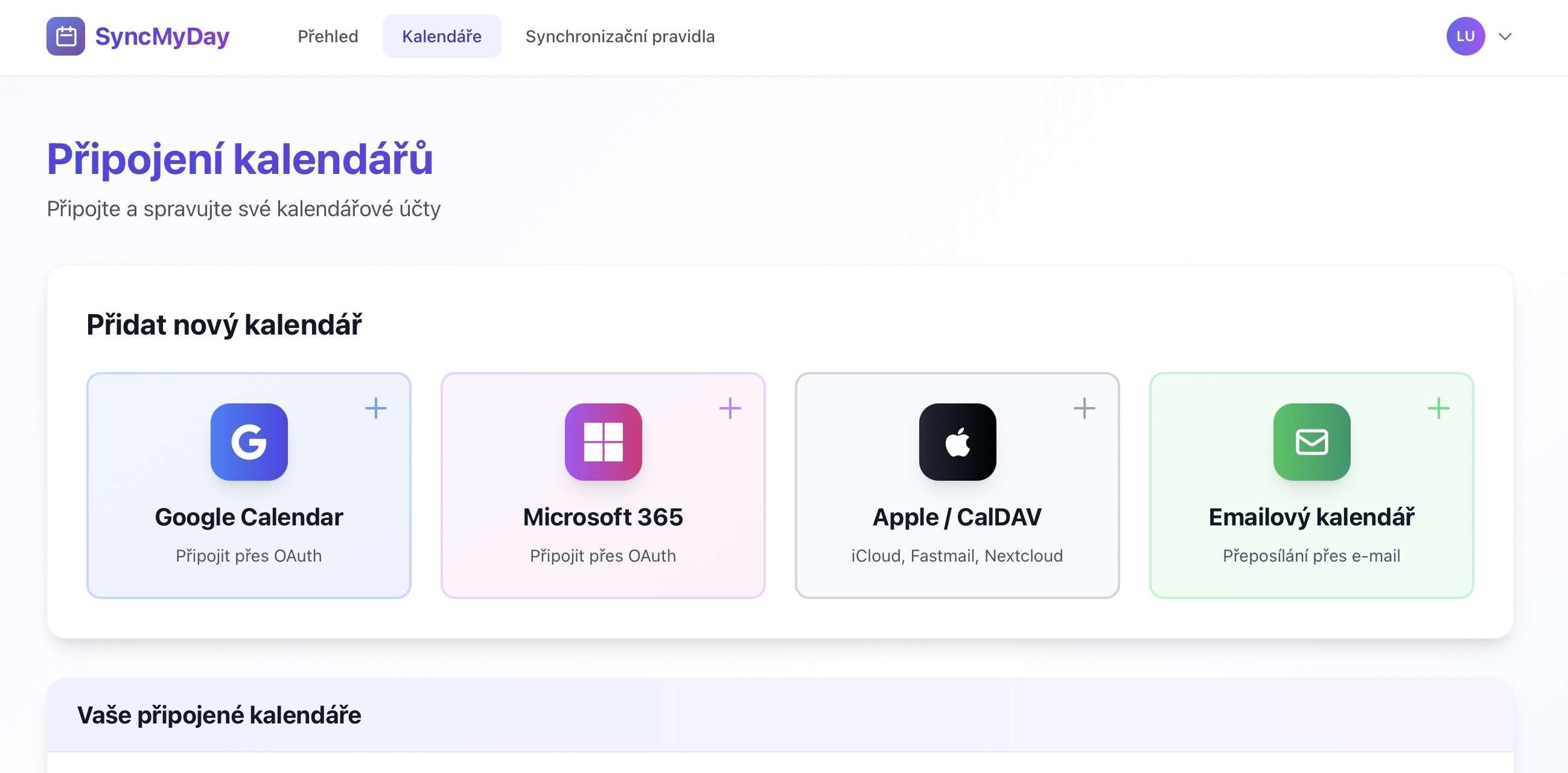
From your SyncMyDay dashboard, click Calendars in the main menu, or go directly to the Calendar Connections page.
 (opens the full-size image)
Calendar Connections page showing all available connection options -
Click “Google Calendar”
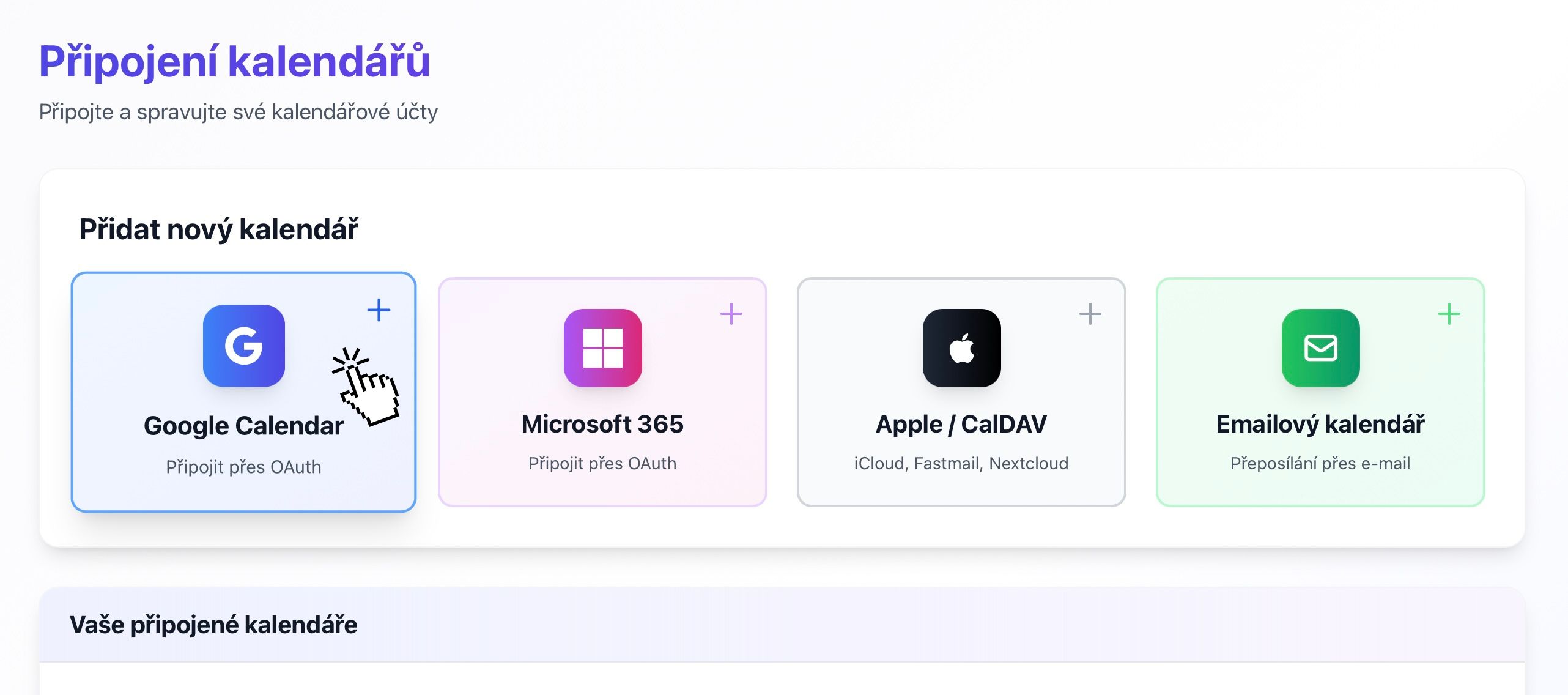
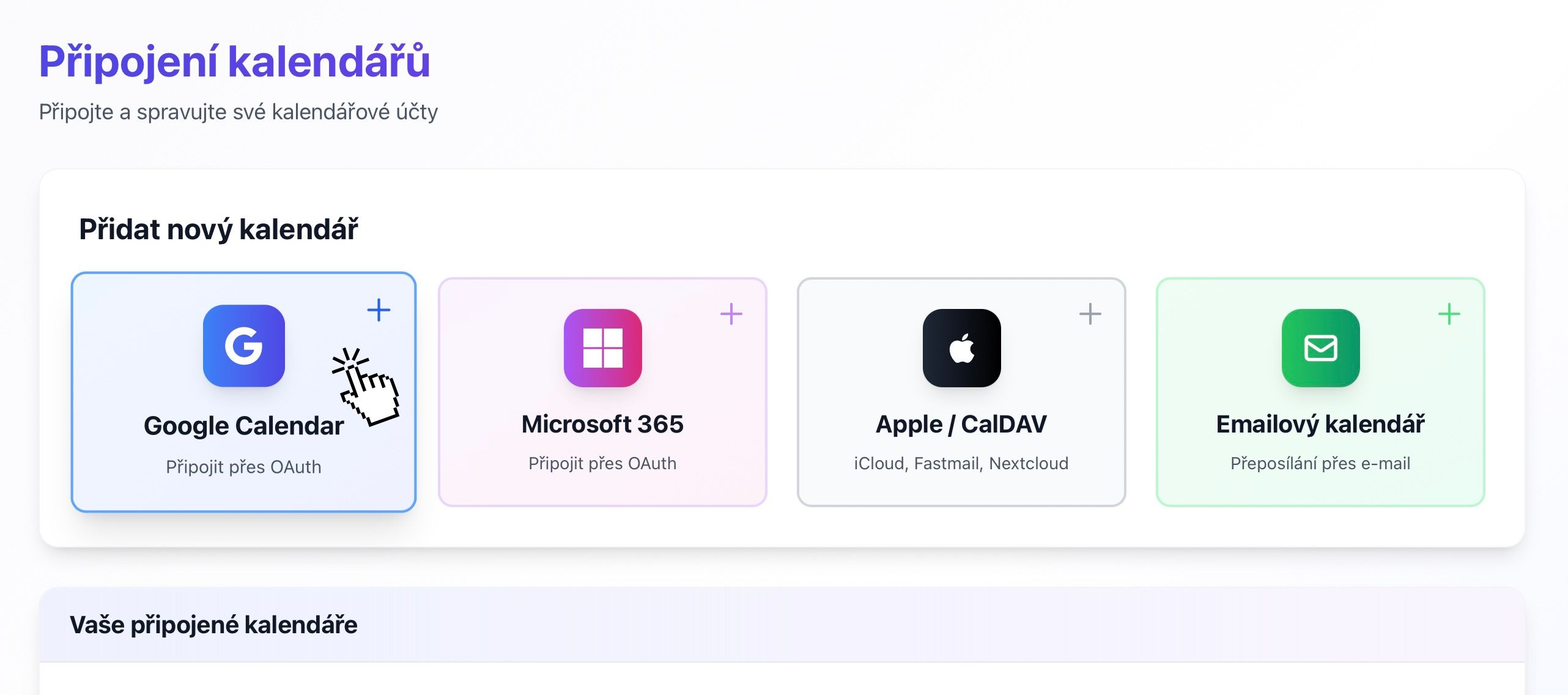
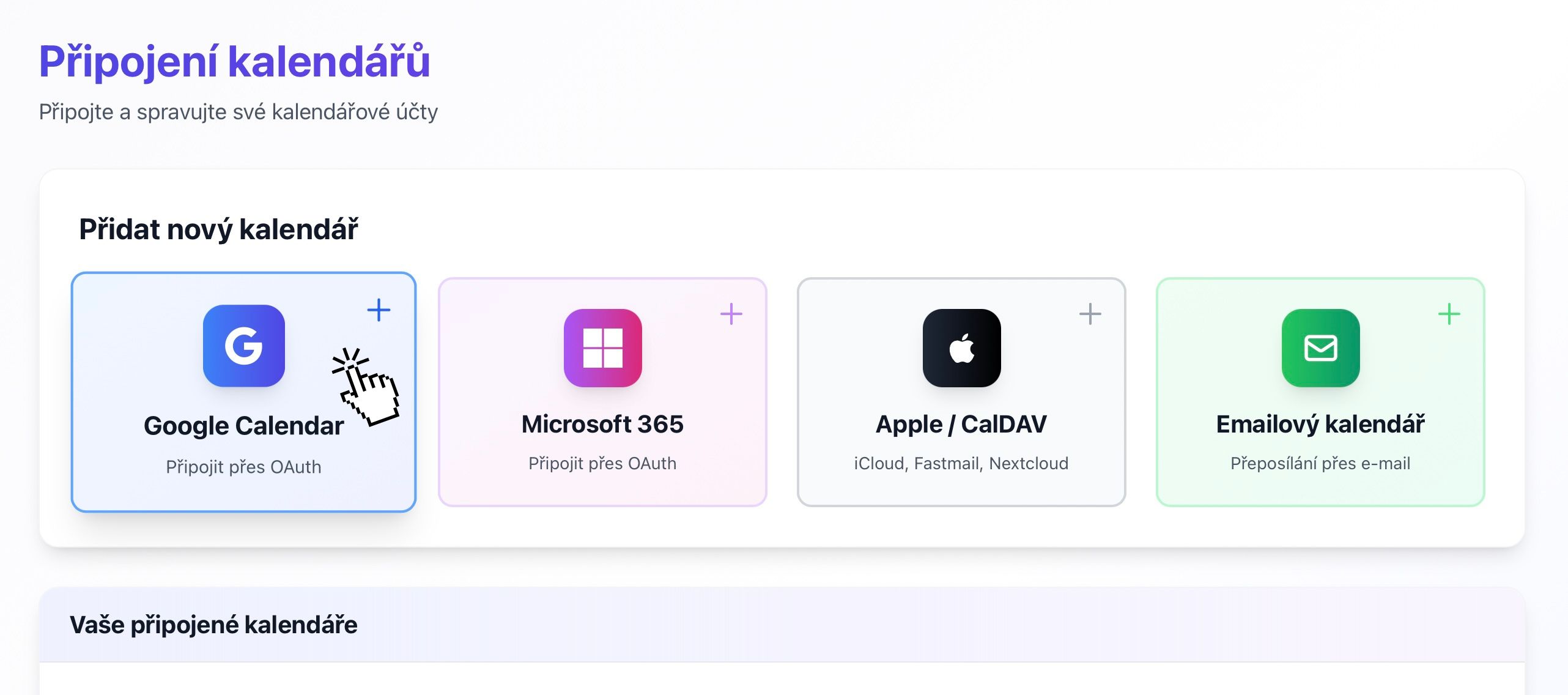
On the Calendar Connections page, find the Google Calendar button and click it.
 (opens the full-size image)
Google Calendar button on Calendar Connections page -
Sign in with Google
You'll be redirected to Google's secure login page. Sign in with the Google account that has the calendar you want to connect.
 (opens the full-size image)
Google Sign-In screen -
Grant permissions
Google will ask for permission to let SyncMyDay access your calendar. Review the permissions and click Allow.
- View events on all your calendars — to read event times
- Add and edit events — to create blocker events
- Delete events — to remove blocker events when you delete the source event
 (opens the full-size image)
Google OAuth permission consent screen -
Select which calendars to sync
After granting permissions, you'll be redirected back to SyncMyDay and see all calendars in your Google account. Select the ones you want to use for syncing.
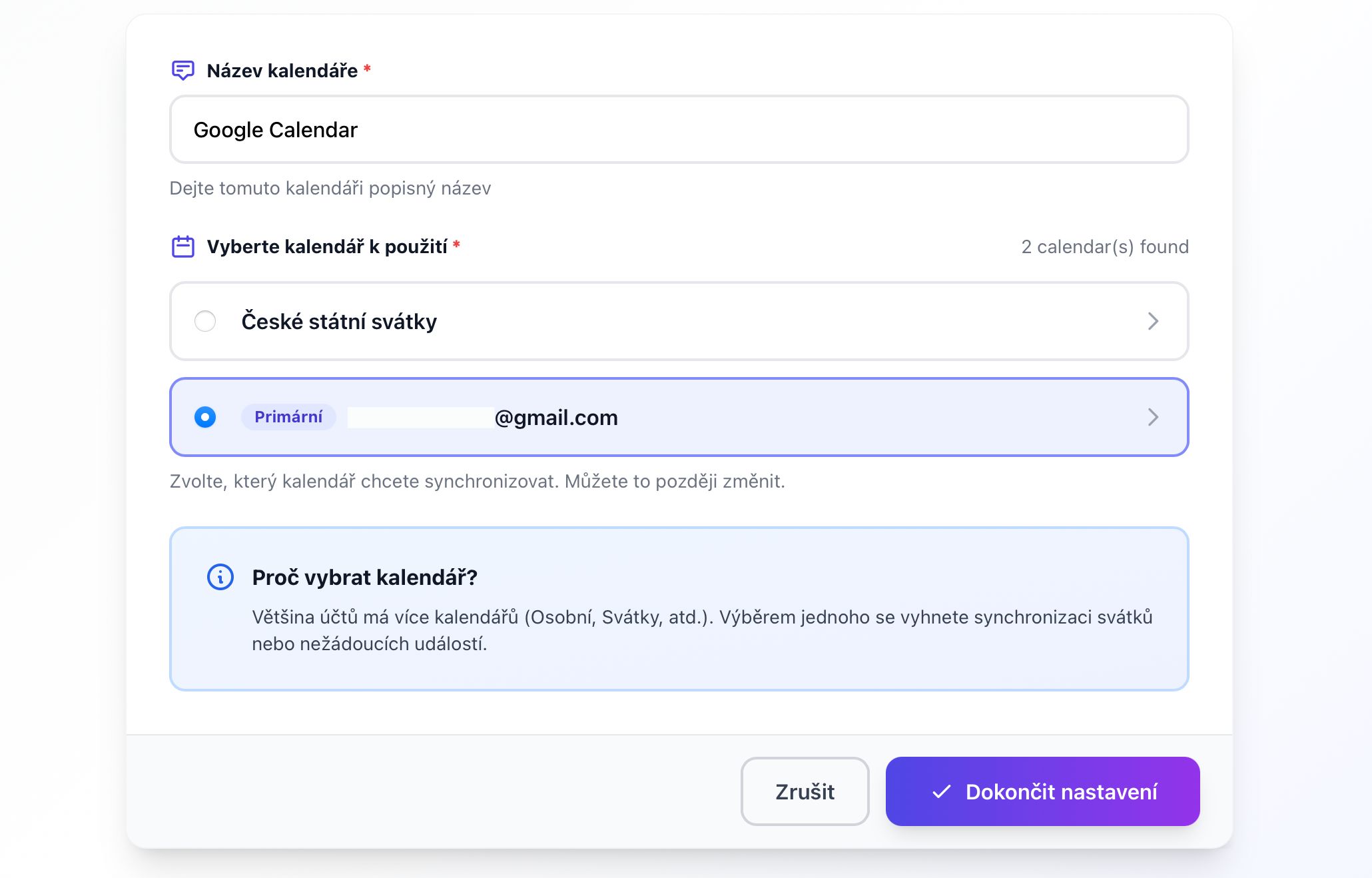 (opens the full-size image)
Calendar selection dialog from Google account -
Done, your calendar is connected
Your Google Calendar will appear in your list of calendar connections with a green Active status badge.
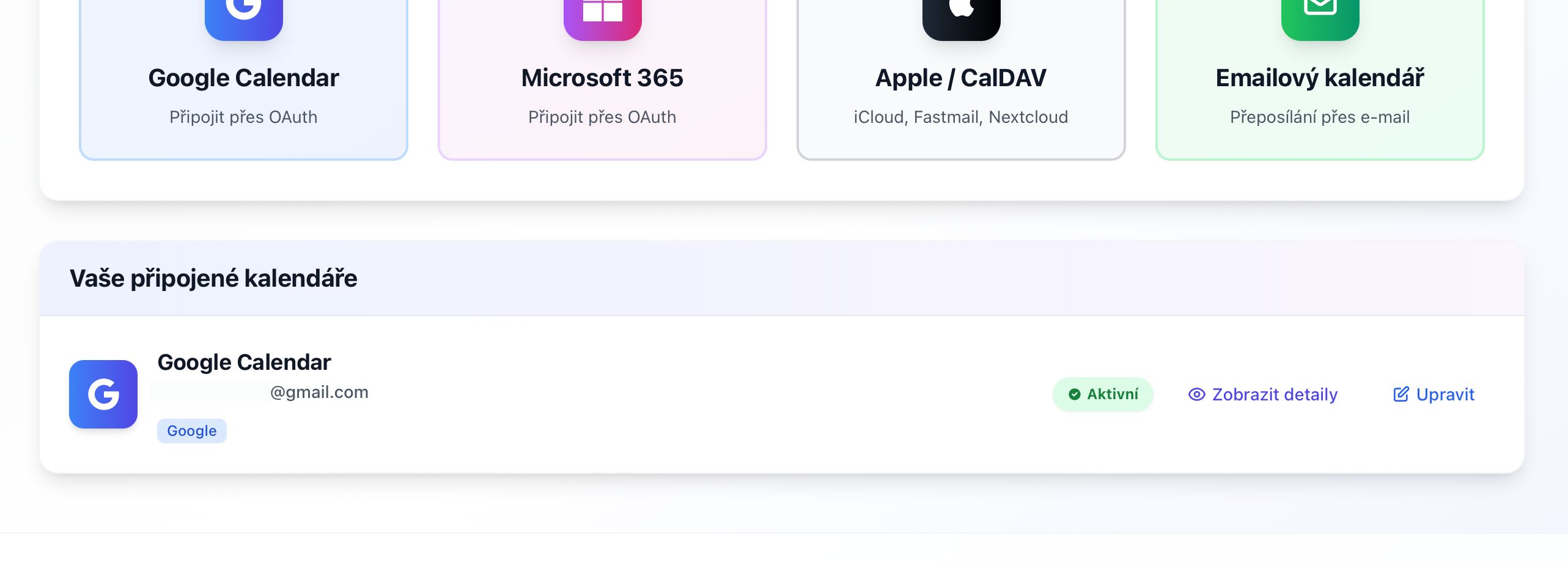 (opens the full-size image)
Connected calendars list with Google Calendar showing Active status
Next steps
Technical details
For developers and IT
OAuth 2.0
https://www.googleapis.com/auth/calendar.readonly— read calendar datahttps://www.googleapis.com/auth/calendar.events— create, modify and delete events
Real-time synchronization
- We register a webhook (Google Calendar Push Notifications) for each connected calendar.
- Google sends notifications within seconds of a change.
- Webhooks are automatically renewed every 7 days; if delivery fails, we fall back to polling every 15 minutes.
Token storage
- Encrypted at rest using AES-256, automatically refreshed and immediately deleted when you disconnect the calendar.
Revoking access
- In SyncMyDay: Disconnect on the Calendar Connections page.
- In Google: myaccount.google.com/permissions and remove SyncMyDay.
Didn't work? Write to us and we will help you.