Google Calendar verbinden
You connect Google Calendar through secure Google sign-in, so you never share your password with us. Changes sync almost instantly thanks to webhooks.
Steps
-
Go to Calendar Connections
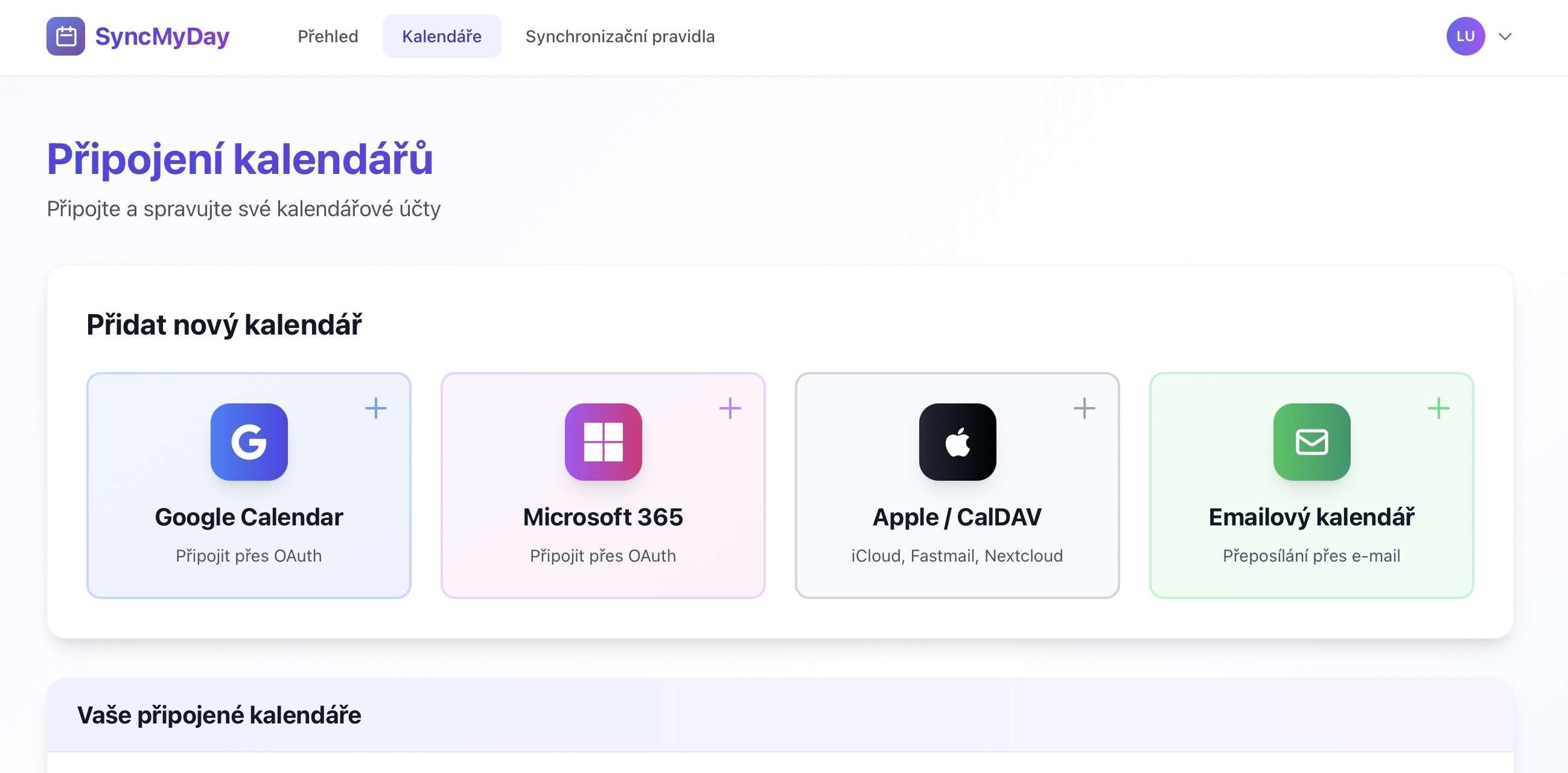
From your SyncMyDay dashboard, click Calendars in the main menu, or go directly to the Calendar Connections page.
 (öffnet das Bild in voller Größe)
Calendar Connections page showing all available connection options -
Click “Google Calendar”
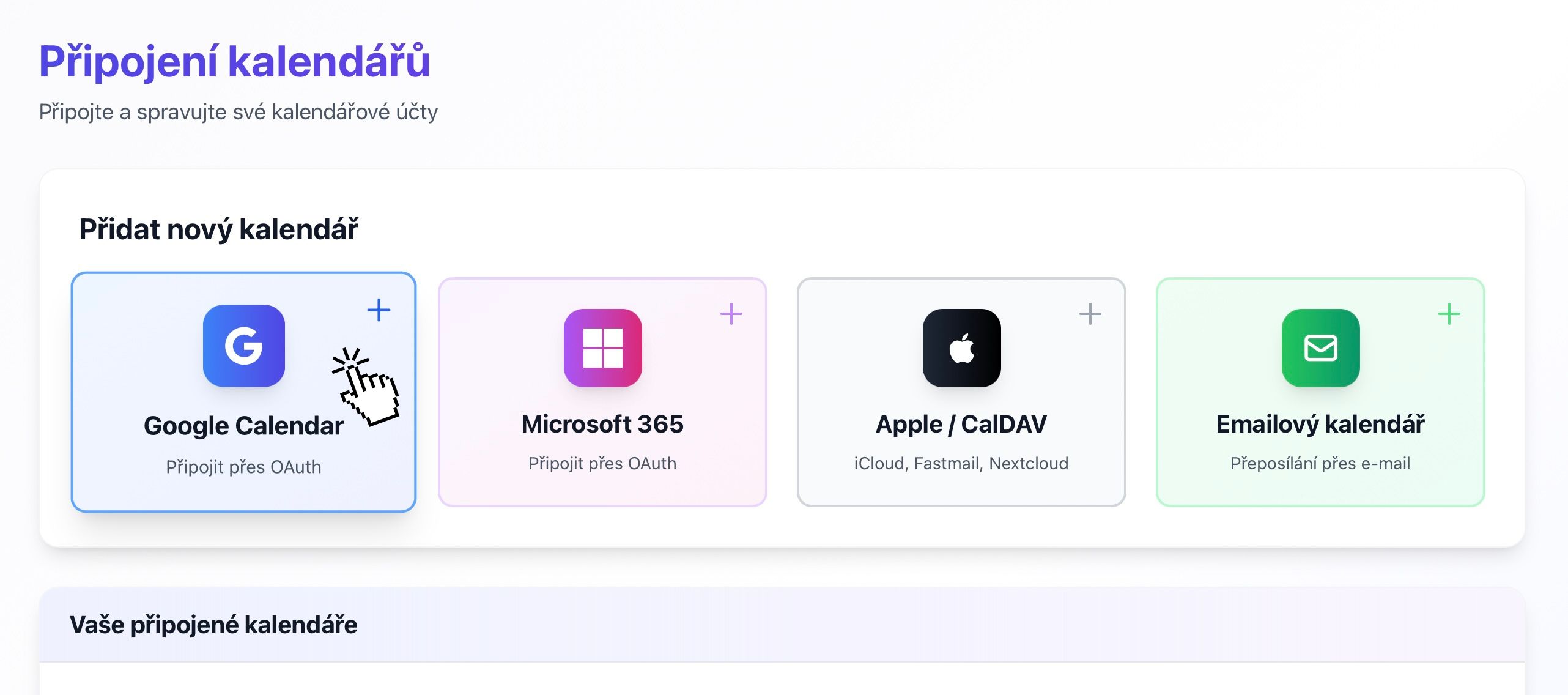
On the Calendar Connections page, find the Google Calendar button and click it.
 (öffnet das Bild in voller Größe)
Google Calendar button on Calendar Connections page -
Sign in with Google
You'll be redirected to Google's secure login page. Sign in with the Google account that has the calendar you want to connect.
 (öffnet das Bild in voller Größe)
Google Sign-In screen -
Grant permissions
Google will ask for permission to let SyncMyDay access your calendar. Review the permissions and click Allow.
- View events on all your calendars — to read event times
- Add and edit events — to create blocker events
- Delete events — to remove blocker events when you delete the source event
 (öffnet das Bild in voller Größe)
Google OAuth permission consent screen -
Select which calendars to sync
After granting permissions, you'll be redirected back to SyncMyDay and see all calendars in your Google account. Select the ones you want to use for syncing.
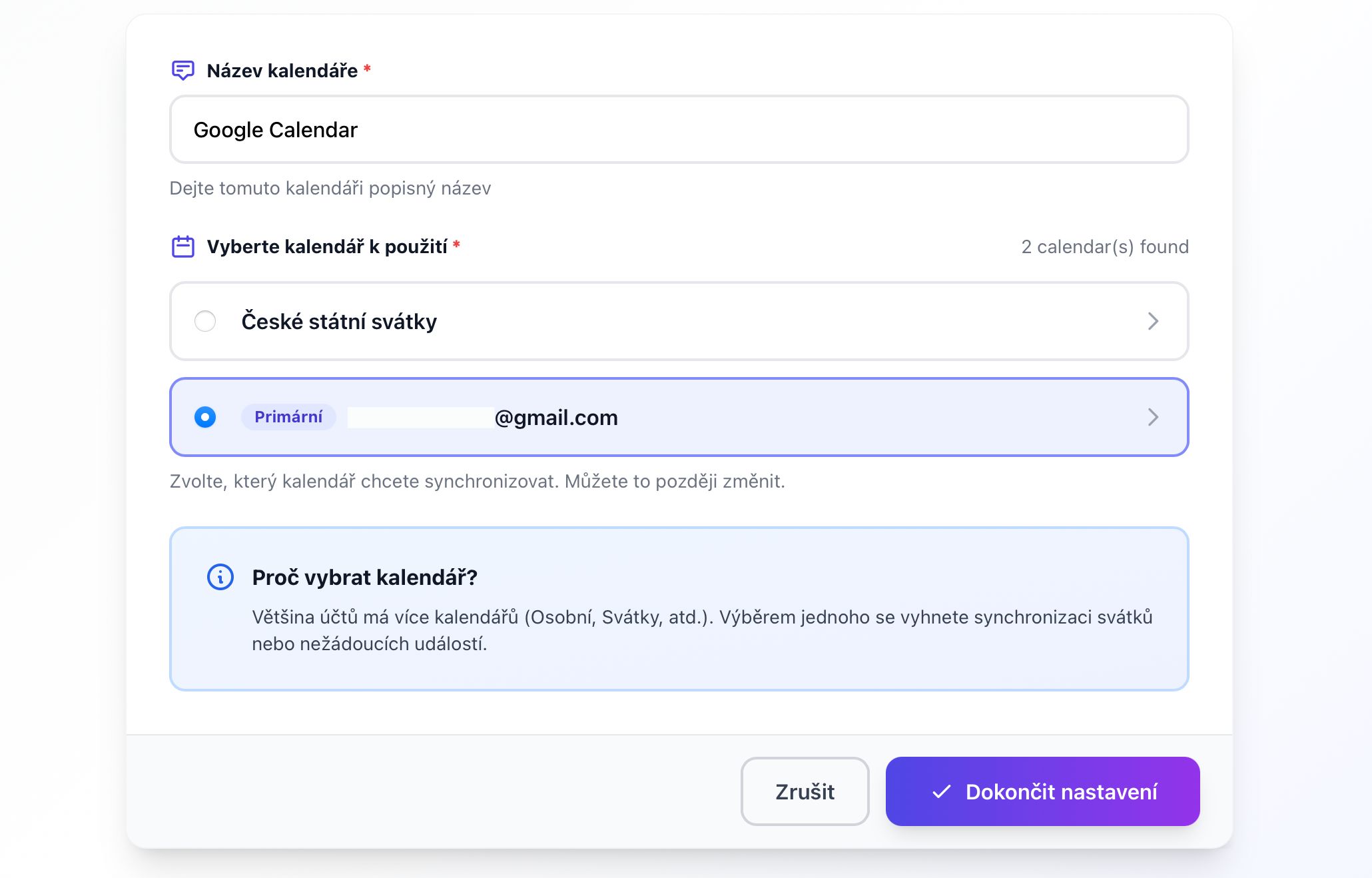 (öffnet das Bild in voller Größe)
Calendar selection dialog from Google account -
Done, your calendar is connected
Your Google Calendar will appear in your list of calendar connections with a green Active status badge.
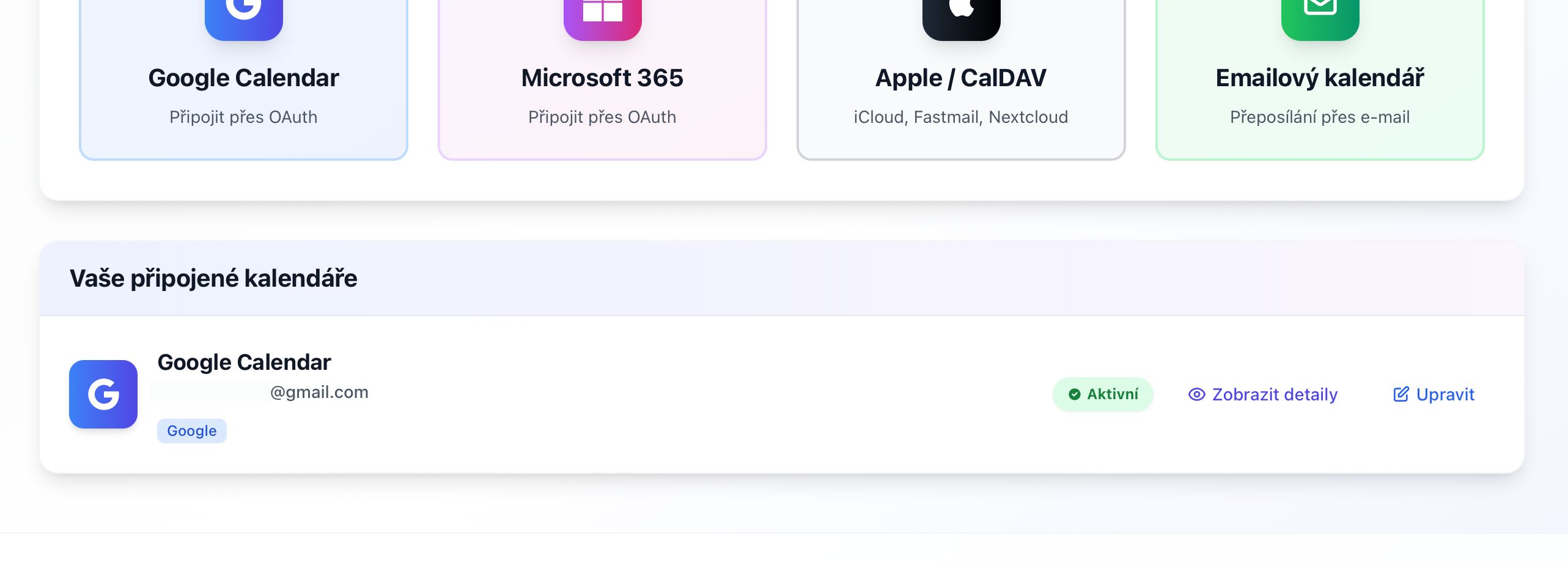 (öffnet das Bild in voller Größe)
Connected calendars list with Google Calendar showing Active status
Nächste Schritte
Technische Details
Für Entwickler und IT
OAuth 2.0
https://www.googleapis.com/auth/calendar.readonly— read calendar datahttps://www.googleapis.com/auth/calendar.events— create, modify and delete events
Real-time synchronization
- We register a webhook (Google Calendar Push Notifications) for each connected calendar.
- Google sends notifications within seconds of a change.
- Webhooks are automatically renewed every 7 days; if delivery fails, we fall back to polling every 15 minutes.
Token storage
- Encrypted at rest using AES-256, automatically refreshed and immediately deleted when you disconnect the calendar.
Revoking access
- In SyncMyDay: Disconnect on the Calendar Connections page.
- In Google: myaccount.google.com/permissions and remove SyncMyDay.
Hat es nicht geklappt? Schreiben Sie uns, wir helfen Ihnen.