Podłączanie Microsoft 365
This guide covers all Microsoft calendar services: Outlook.com (personal Microsoft accounts @outlook.com, @hotmail.com, @live.com), Microsoft 365 (work or school accounts), Office 365 (business subscriptions) and Exchange Online (enterprise email and calendars).
Steps
-
Go to Calendar Connections
From your SyncMyDay dashboard, navigate to Calendars in the main menu, or go directly to the Calendar Connections page.
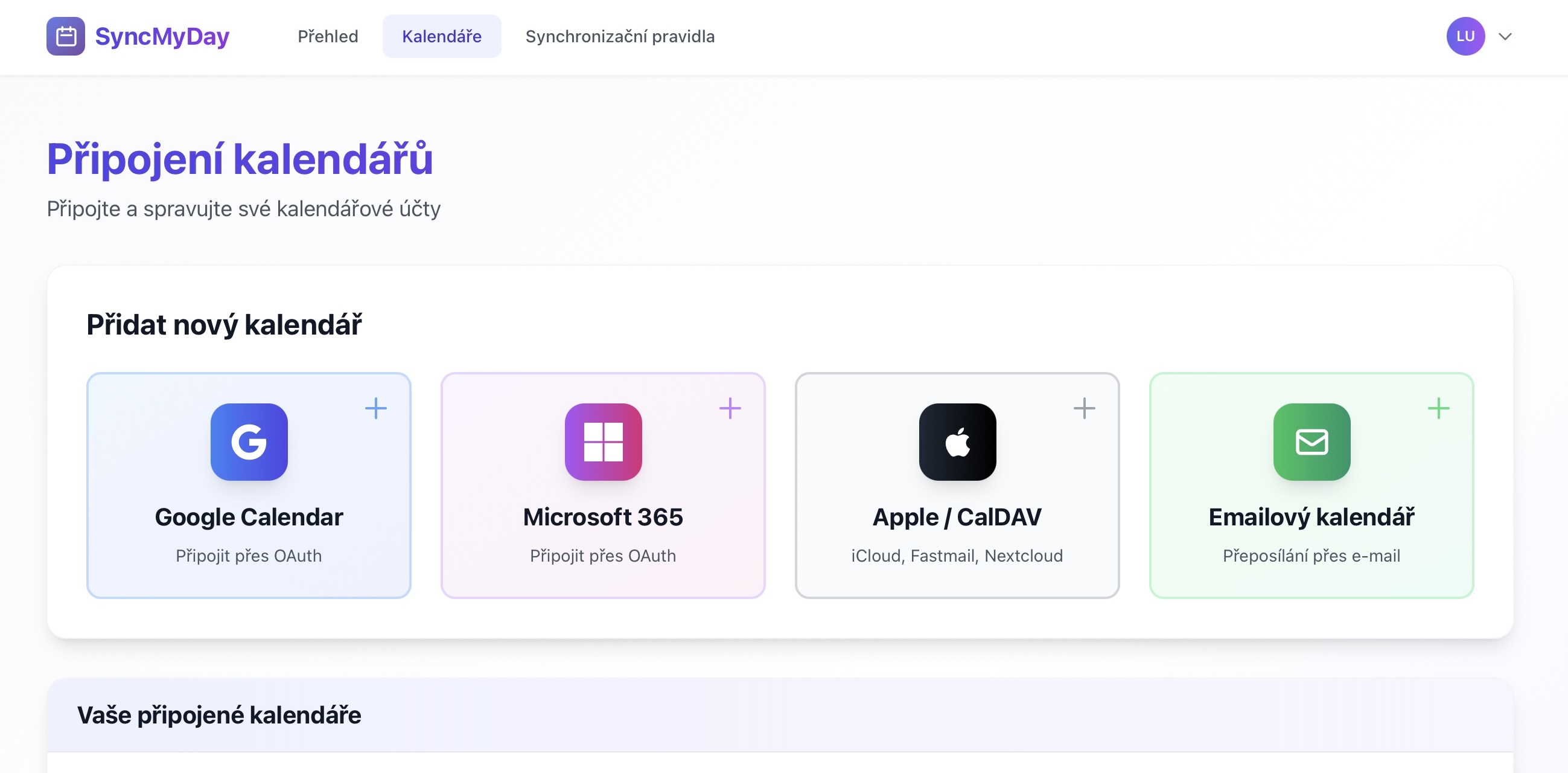 (otwiera obraz w pełnym rozmiarze)
Calendar Connections page with provider options -
Click “Microsoft 365”
Find and click the Microsoft 365 button with the Microsoft logo.
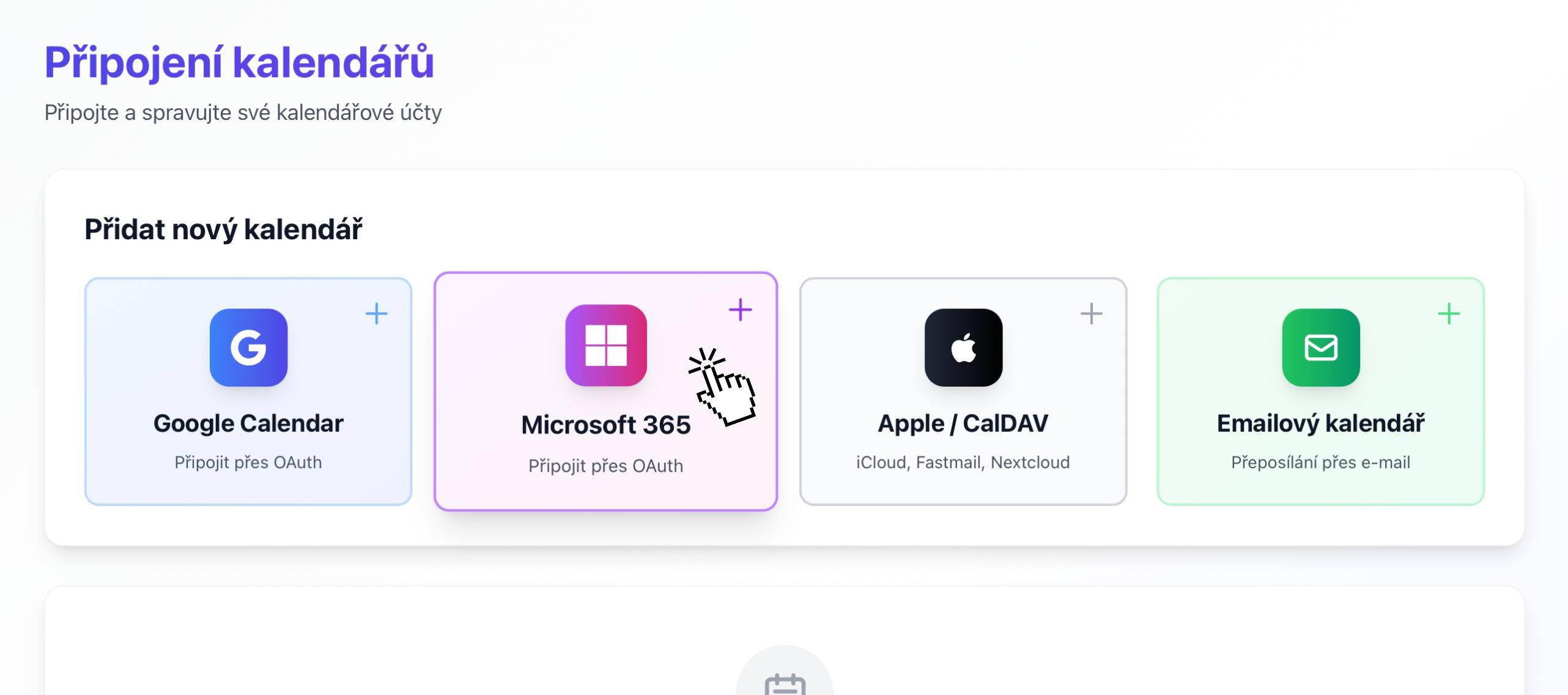 (otwiera obraz w pełnym rozmiarze)
Microsoft 365 button on Calendar Connections page -
Sign in with Microsoft
You'll be redirected to Microsoft's secure sign-in page. Enter your Microsoft email address:
- Personal: @outlook.com, @hotmail.com, @live.com
- Work/School: Your organization's email (e.g., you@company.com)
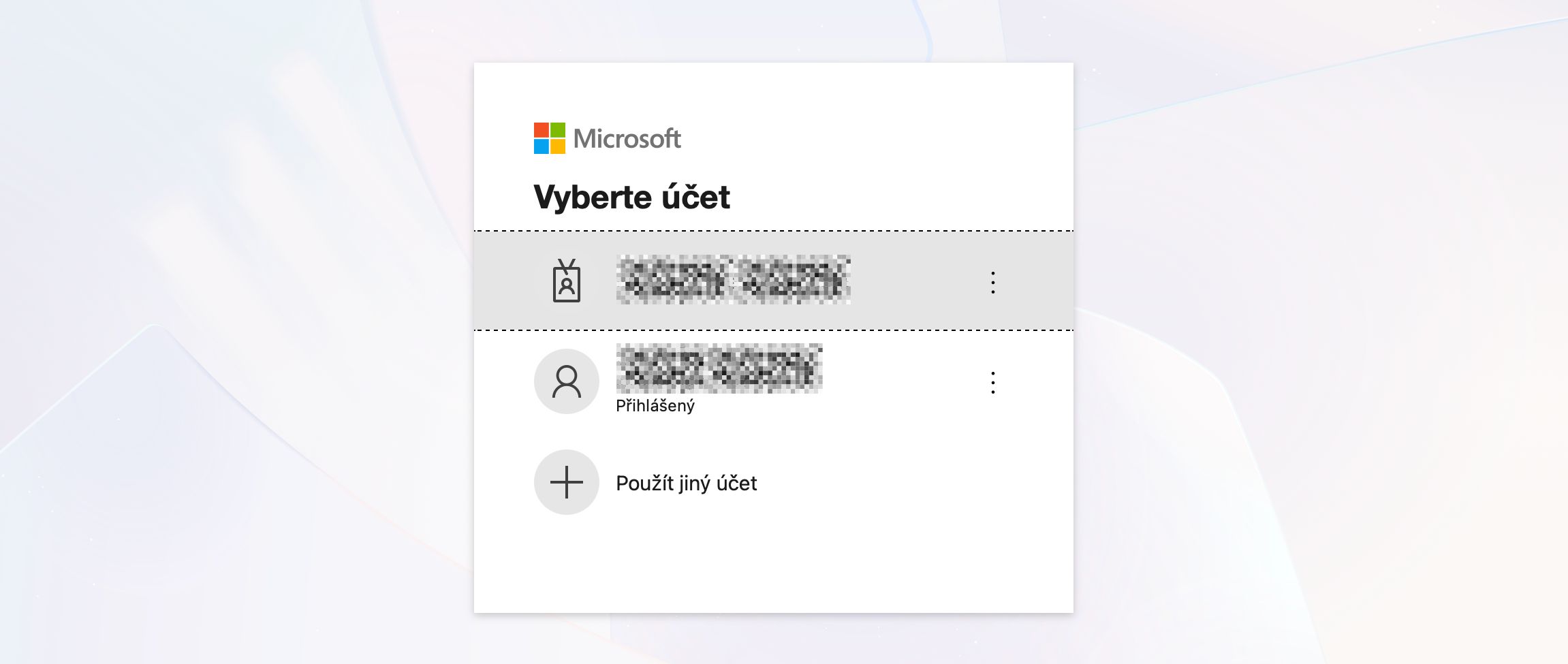 (otwiera obraz w pełnym rozmiarze)
Microsoft Sign-In screen -
Enter your password
After entering your email, you'll be prompted for your password. Enter your Microsoft account password.
If you have multi-factor authentication (MFA) enabled, you'll need to approve the sign-in on your phone or authenticator app.
-
Grant permissions
Microsoft will show a permissions screen asking if you want to let SyncMyDay access your calendar. Click Accept to continue.
- Read your calendars — to detect when you have events scheduled
- Create and modify calendar events — to create blocker events
- Delete calendar events — to remove blocker events when needed
- Maintain access to data — for continuous synchronization
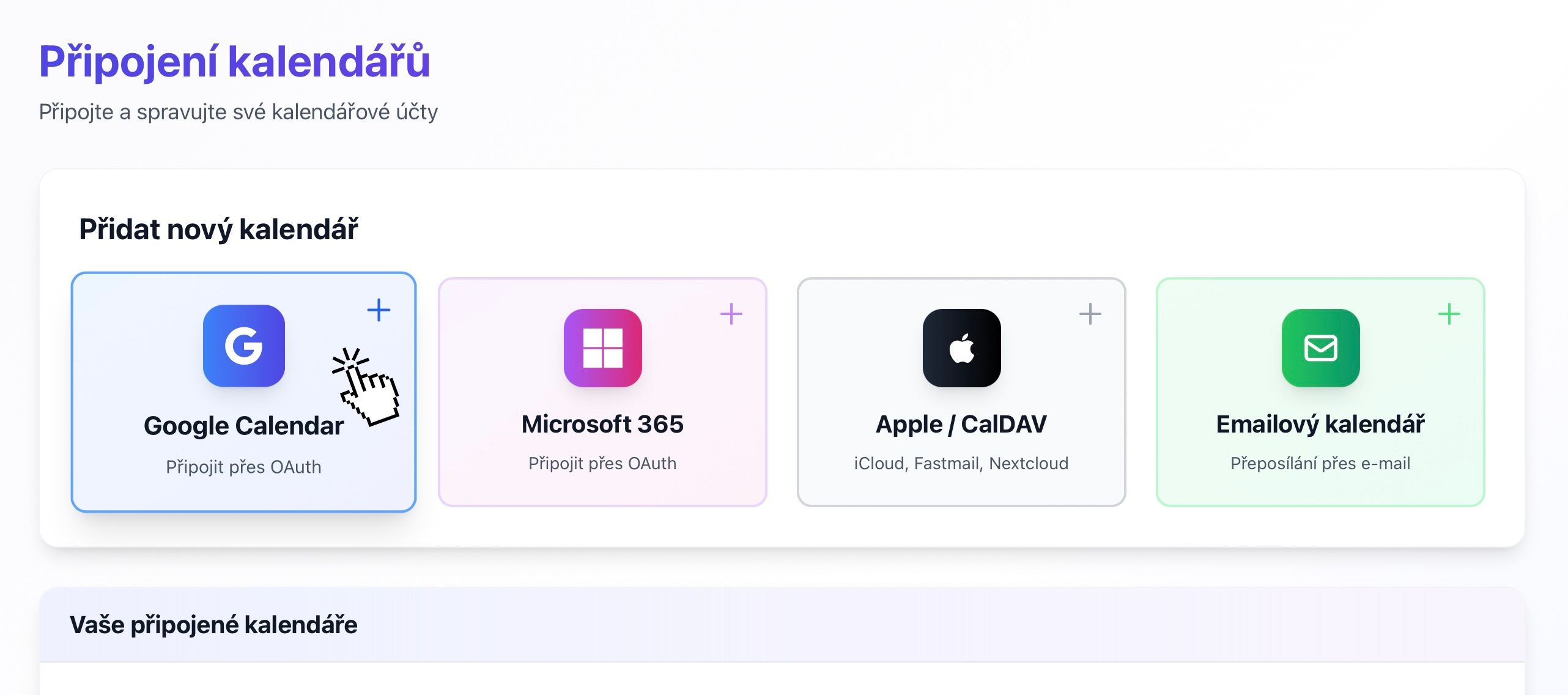 (otwiera obraz w pełnym rozmiarze)
Microsoft permissions consent screen -
Select calendars to sync
After granting permissions, you'll return to SyncMyDay where you can select which Microsoft calendars you want to use for syncing.
Most accounts will have at least:
- Calendar — your main calendar
- Birthdays — contact birthdays (you can skip this)
You may also see:
- Shared team calendars
- Resource calendars (meeting rooms, equipment)
- Calendars shared with you by colleagues
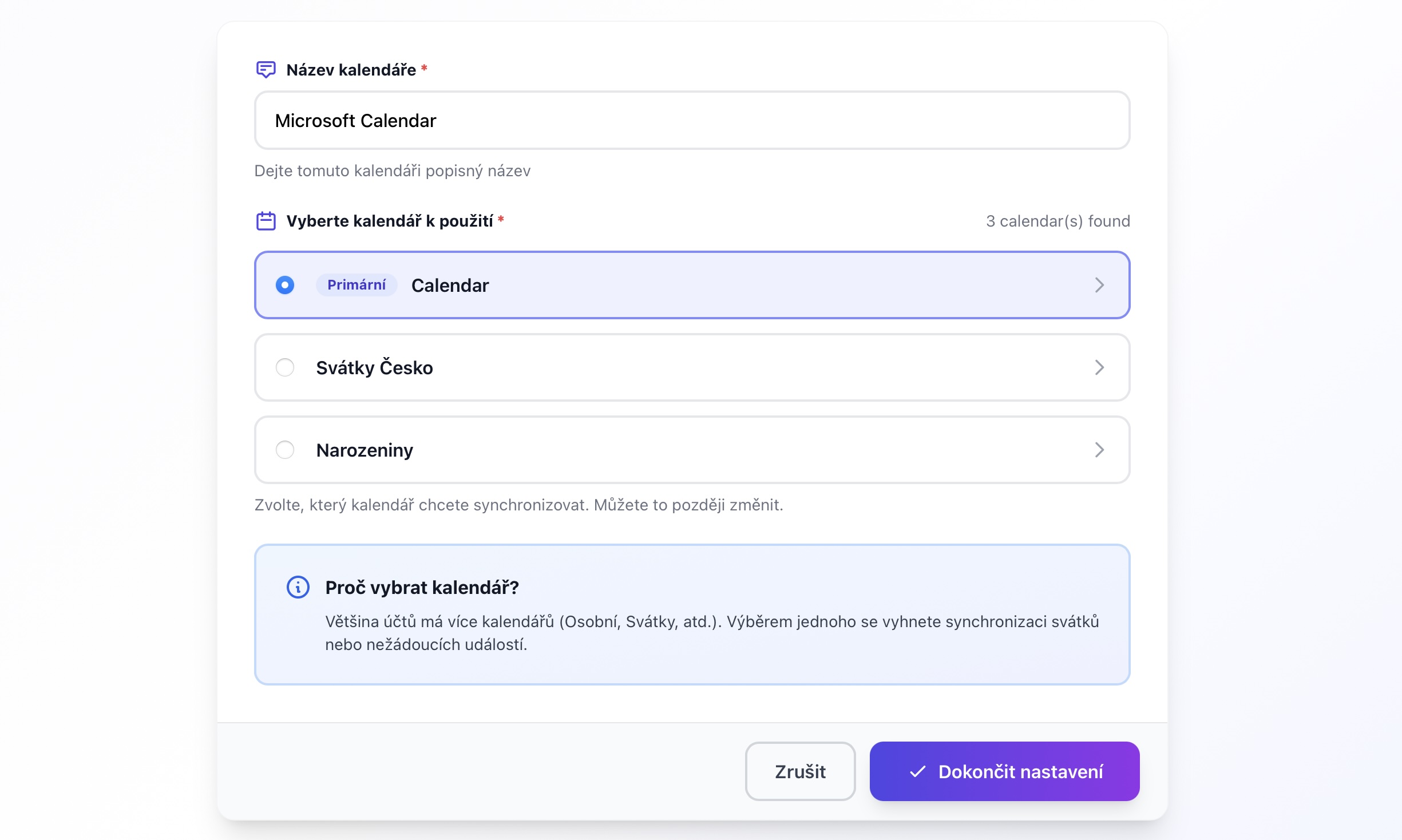 (otwiera obraz w pełnym rozmiarze)
Calendar selection dialog from Microsoft account -
Connection complete
Your Microsoft 365 calendar is now connected and ready to use. You'll see it in your Calendar Connections list with an Active status.
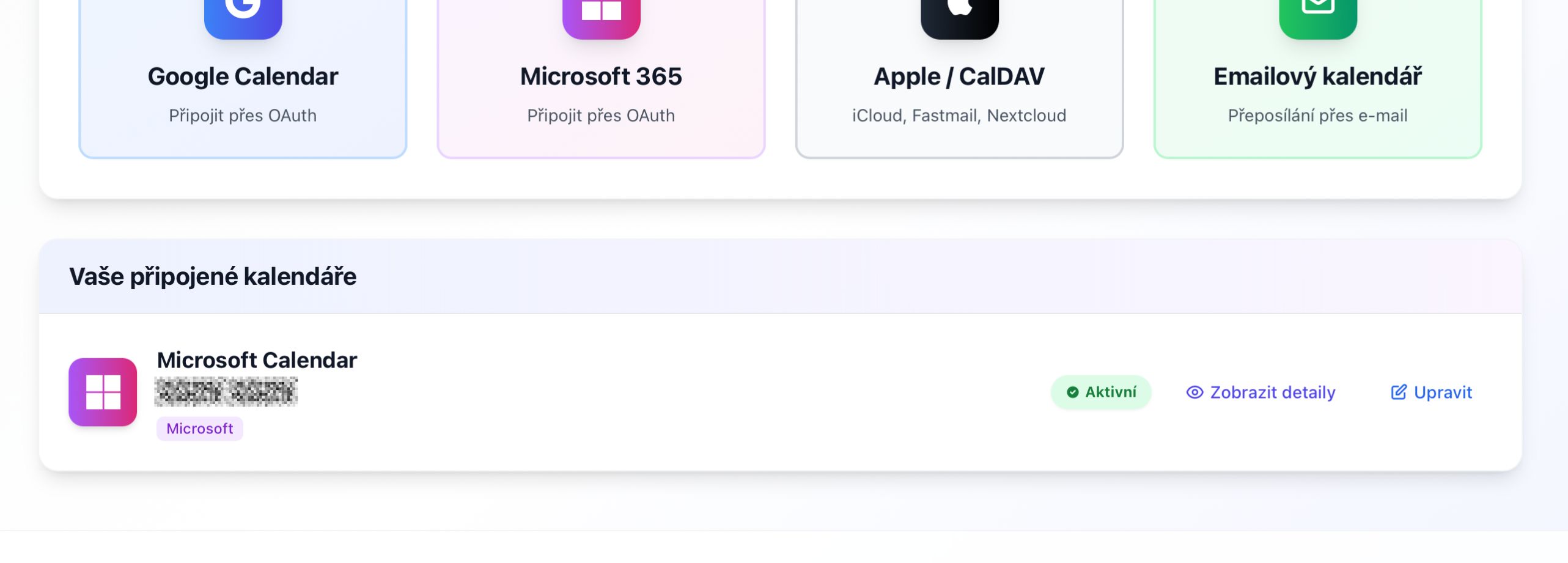 (otwiera obraz w pełnym rozmiarze)
Connected calendars list with Microsoft 365 showing Active status
Common issues
“Your organization needs to approve this app”
Why this happens: Your IT department has restricted which apps can access company data.
Solution:
- Contact your IT administrator or help desk.
- Ask them to approve “SyncMyDay” in the Microsoft 365 admin center.
- Or request an exception for your account.
This is common in larger organizations and is a security best practice.
Connection shows “Error” status
Common causes:
- Your password was changed.
- Multi-factor authentication settings changed.
- Organization revoked access.
Solution: Click the Refresh button to re-authenticate, or disconnect and reconnect the calendar.
Can't see a shared calendar
Shared calendars should appear if they're added to your Outlook. If missing:
- Make sure the calendar is visible in Outlook web or app.
- Disconnect and reconnect your Microsoft account.
- Ensure you have at least “Can view all details” permission.
Kolejne kroki
Szczegóły techniczne
Dla programistów i działu IT
Microsoft Graph API
SyncMyDay uses the Microsoft Graph API with these permissions:
Calendars.ReadWrite— read and write calendar eventsoffline_access— maintain access when the user is offline
OAuth 2.0 authentication
We use the standard OAuth 2.0 authorization code flow:
- Supports both personal Microsoft accounts and Azure AD accounts.
- Tokens are refreshed automatically every 60 minutes.
- Refresh tokens are valid for 90 days (automatically renewed).
Real-time synchronization
Microsoft Graph change notifications (webhooks) enable instant sync:
- Subscriptions are created for each connected calendar.
- Notifications are received within 2–3 minutes of changes.
- Subscriptions are renewed every 3 days automatically.
- Fallback polling occurs every 15 minutes if webhooks fail.
Enterprise admin consent
IT administrators can pre-approve SyncMyDay for all users:
- Go to Azure AD Portal → Enterprise Applications.
- Search for “SyncMyDay” or add it via App ID.
- Grant admin consent for the organization.
- Users can then connect without approval prompts.
API throttling
Microsoft Graph has the following limits:
- Per app: 10,000 requests per 10 minutes
- Per user: 2,000 requests per second
SyncMyDay's webhook-based architecture minimizes API calls and stays well within limits.
Data residency
Your calendar data remains in Microsoft's data centers. SyncMyDay only stores:
- Calendar IDs and names
- Event start/end times (no titles or descriptions)
- Encrypted OAuth tokens
Nie udało się? Napisz do nas, a pomożemy.