Microsoft 365 verbinden
This guide covers all Microsoft calendar services: Outlook.com (personal Microsoft accounts @outlook.com, @hotmail.com, @live.com), Microsoft 365 (work or school accounts), Office 365 (business subscriptions) and Exchange Online (enterprise email and calendars).
Steps
-
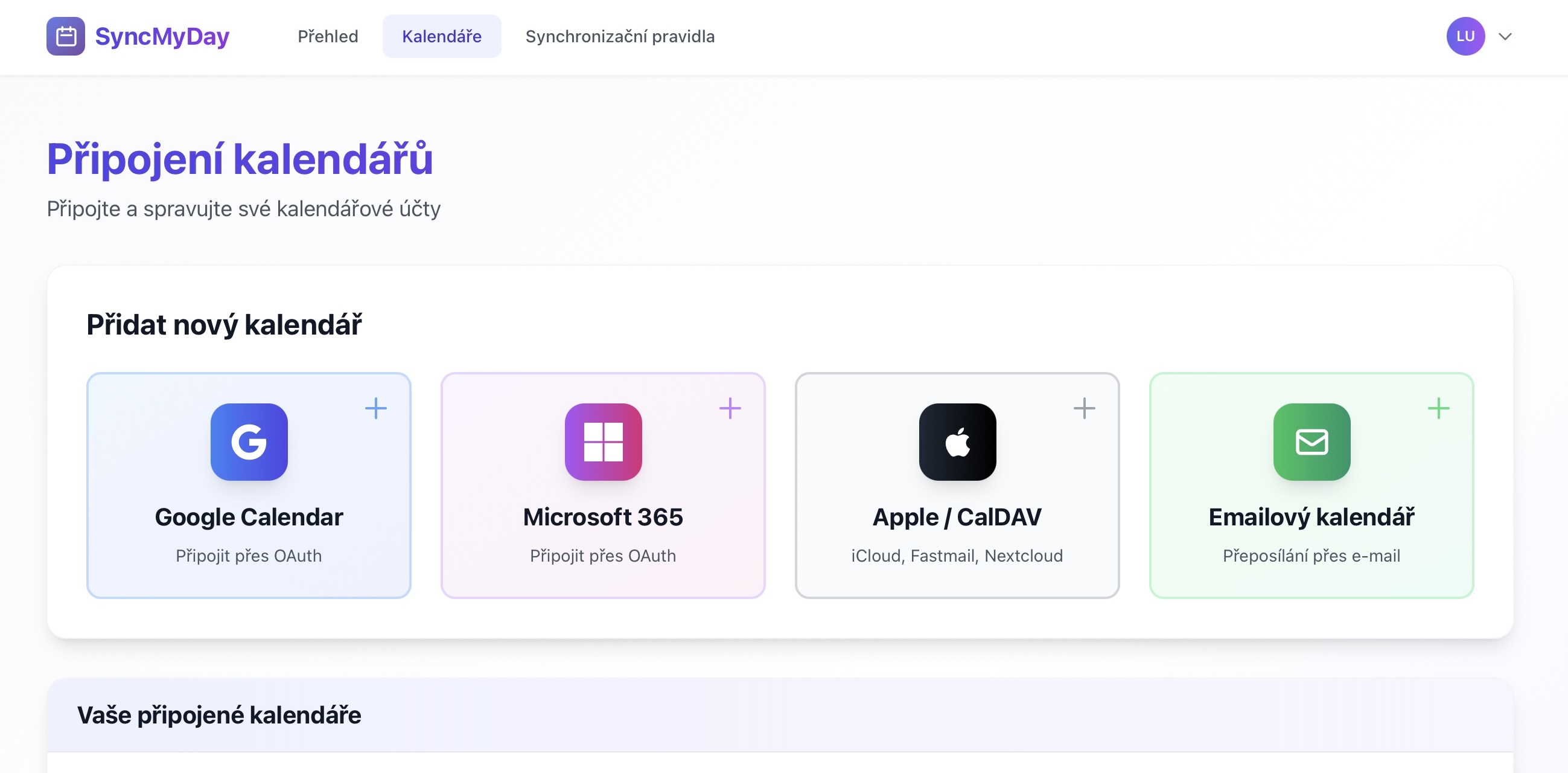
Go to Calendar Connections
From your SyncMyDay dashboard, navigate to Calendars in the main menu, or go directly to the Calendar Connections page.
 (öffnet das Bild in voller Größe)
Calendar Connections page with provider options -
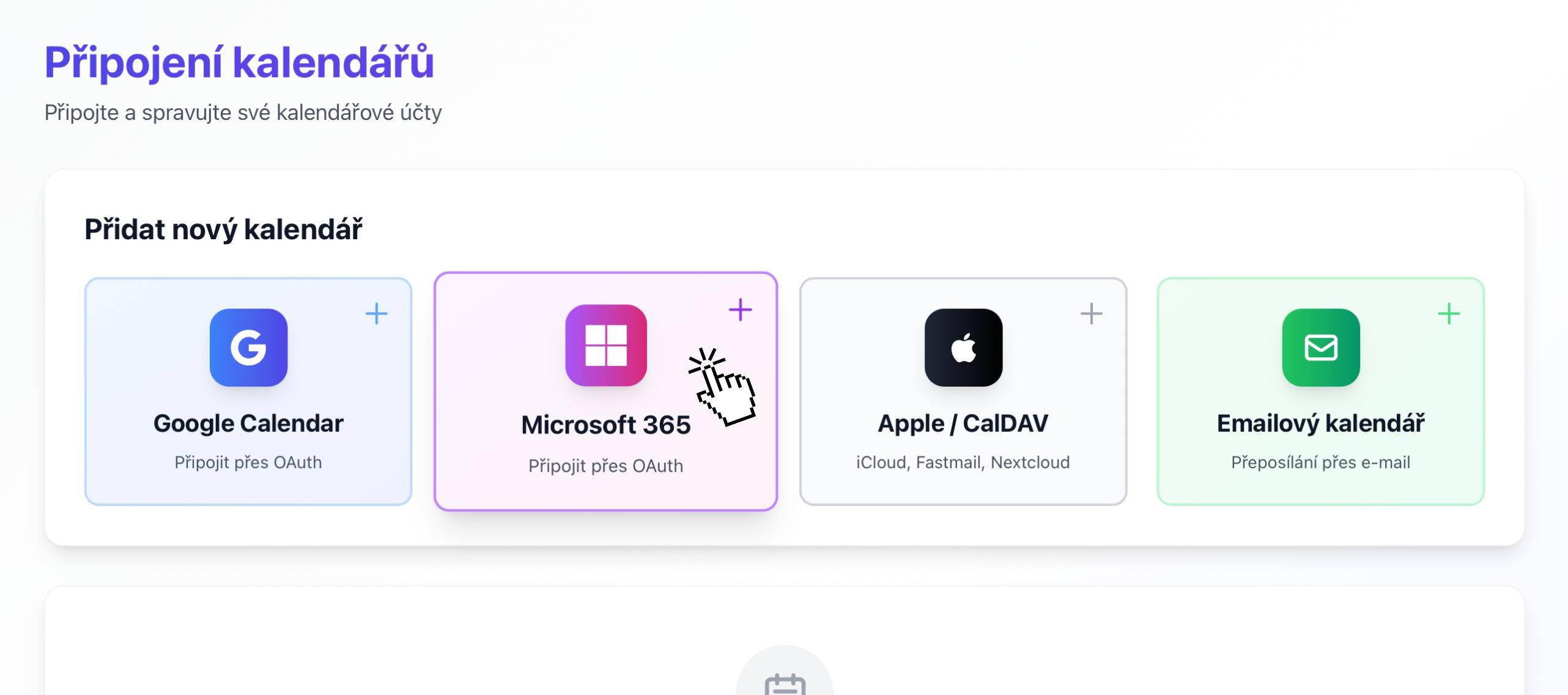
Click “Microsoft 365”
Find and click the Microsoft 365 button with the Microsoft logo.
 (öffnet das Bild in voller Größe)
Microsoft 365 button on Calendar Connections page -
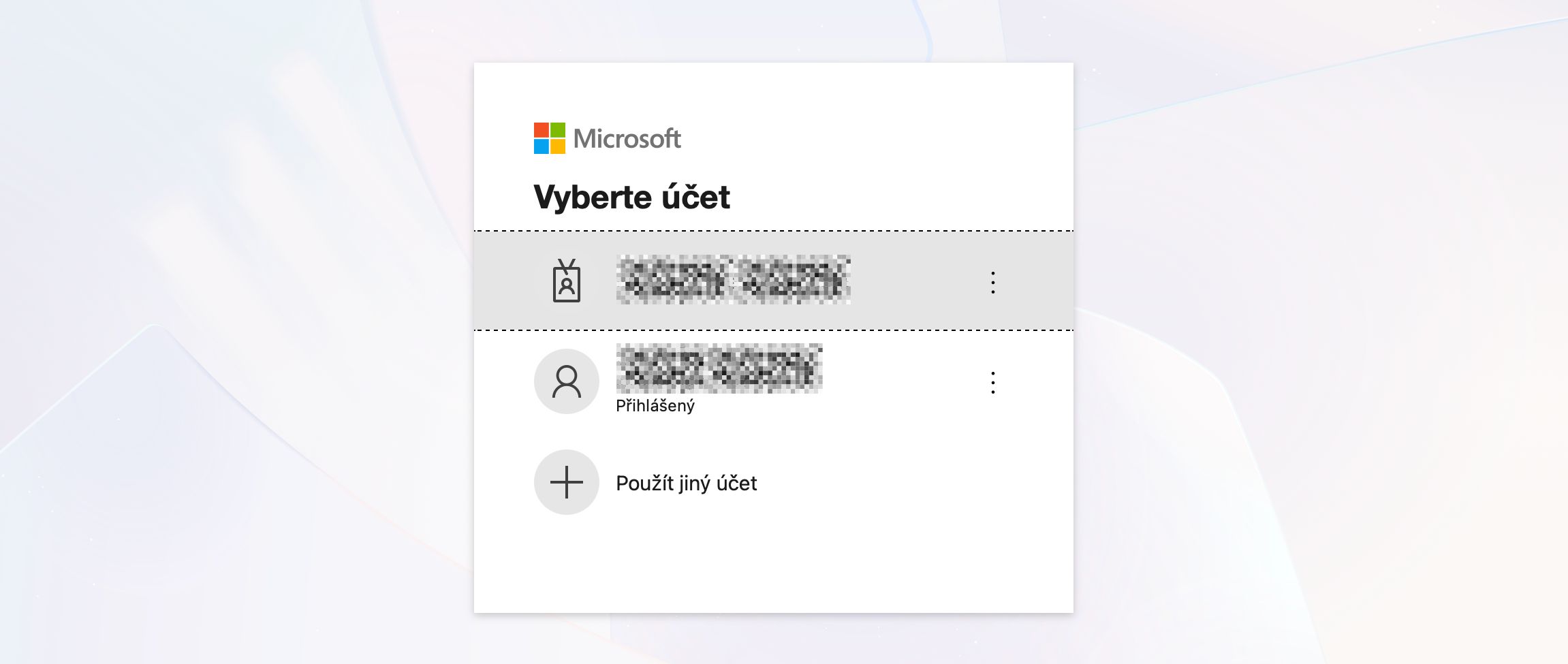
Sign in with Microsoft
You'll be redirected to Microsoft's secure sign-in page. Enter your Microsoft email address:
- Personal: @outlook.com, @hotmail.com, @live.com
- Work/School: Your organization's email (e.g., you@company.com)
 (öffnet das Bild in voller Größe)
Microsoft Sign-In screen -
Enter your password
After entering your email, you'll be prompted for your password. Enter your Microsoft account password.
If you have multi-factor authentication (MFA) enabled, you'll need to approve the sign-in on your phone or authenticator app.
-
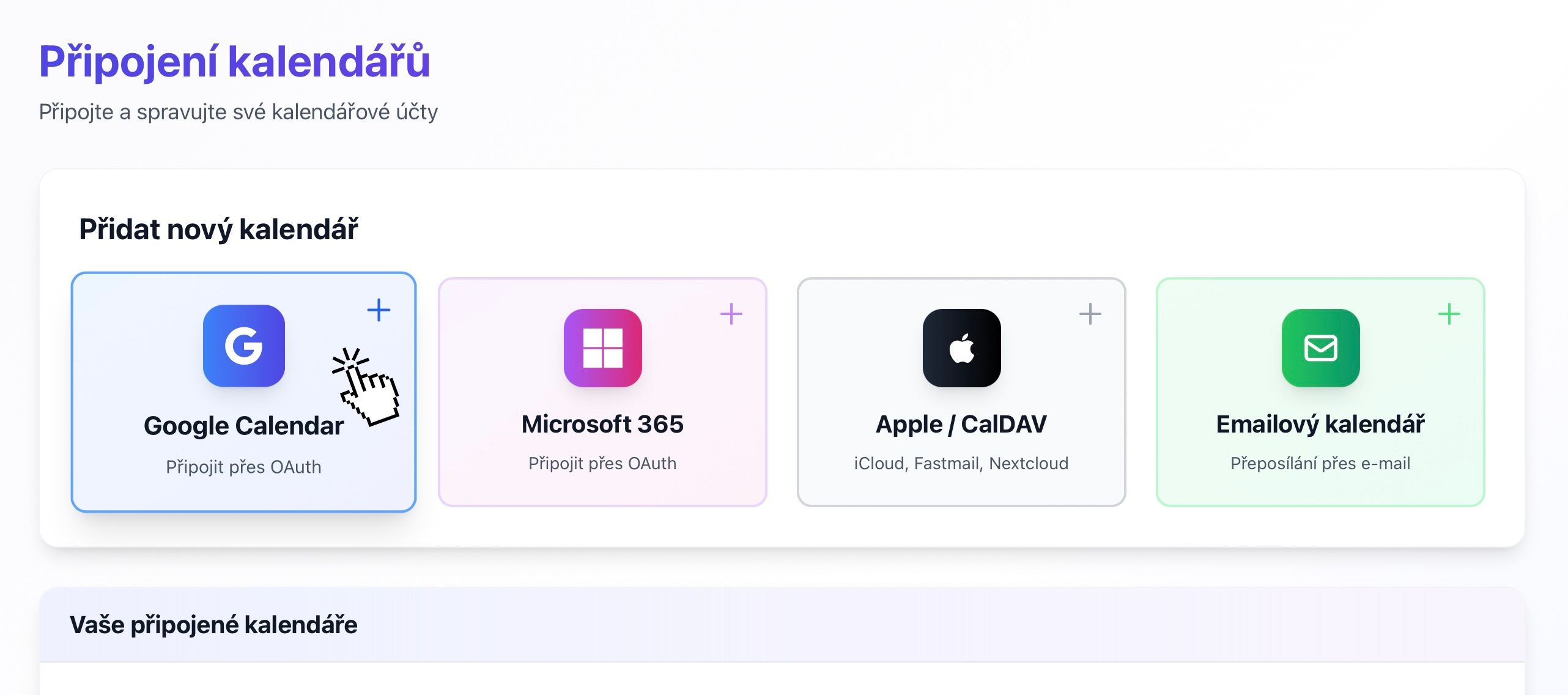
Grant permissions
Microsoft will show a permissions screen asking if you want to let SyncMyDay access your calendar. Click Accept to continue.
- Read your calendars — to detect when you have events scheduled
- Create and modify calendar events — to create blocker events
- Delete calendar events — to remove blocker events when needed
- Maintain access to data — for continuous synchronization
 (öffnet das Bild in voller Größe)
Microsoft permissions consent screen -
Select calendars to sync
After granting permissions, you'll return to SyncMyDay where you can select which Microsoft calendars you want to use for syncing.
Most accounts will have at least:
- Calendar — your main calendar
- Birthdays — contact birthdays (you can skip this)
You may also see:
- Shared team calendars
- Resource calendars (meeting rooms, equipment)
- Calendars shared with you by colleagues
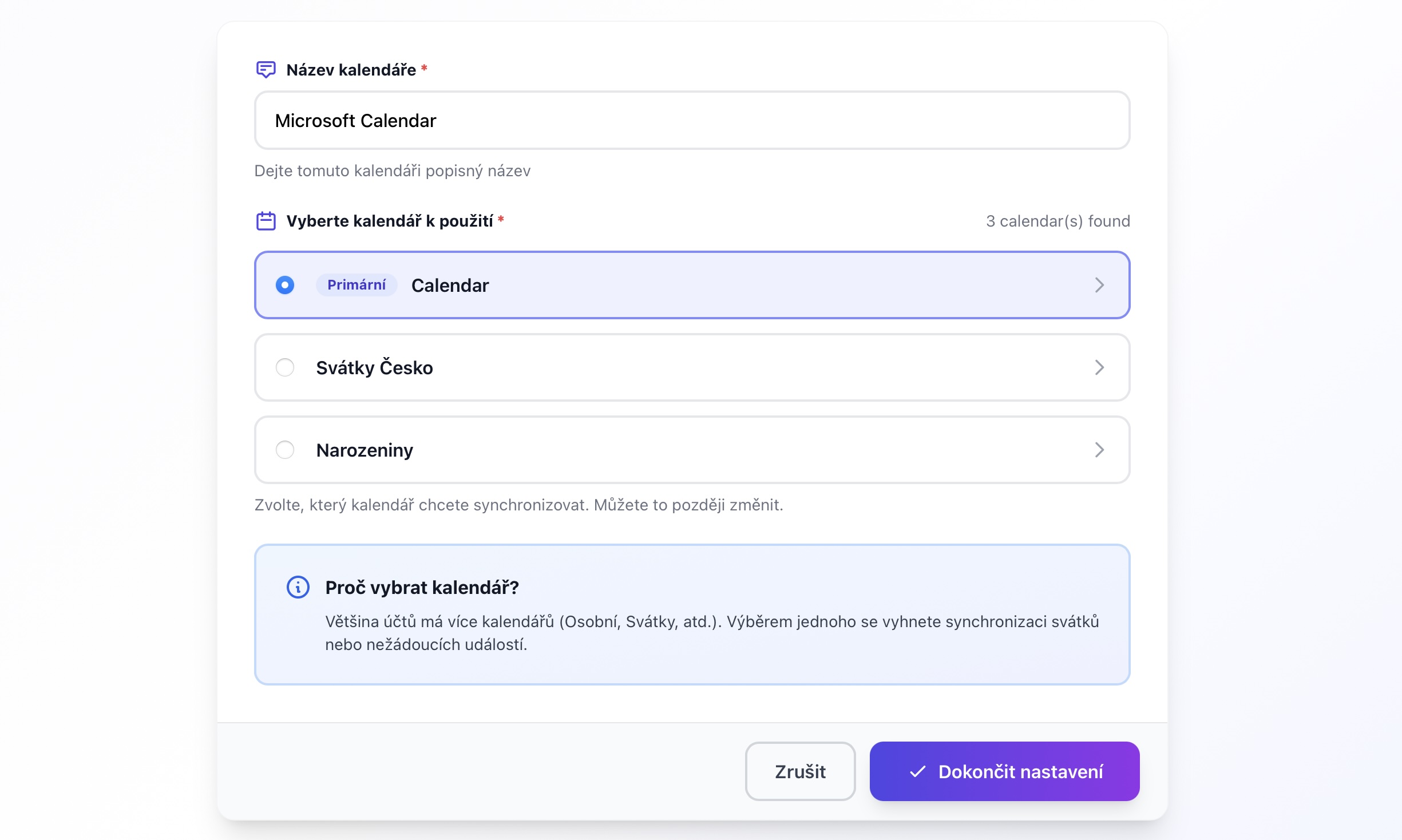 (öffnet das Bild in voller Größe)
Calendar selection dialog from Microsoft account -
Connection complete
Your Microsoft 365 calendar is now connected and ready to use. You'll see it in your Calendar Connections list with an Active status.
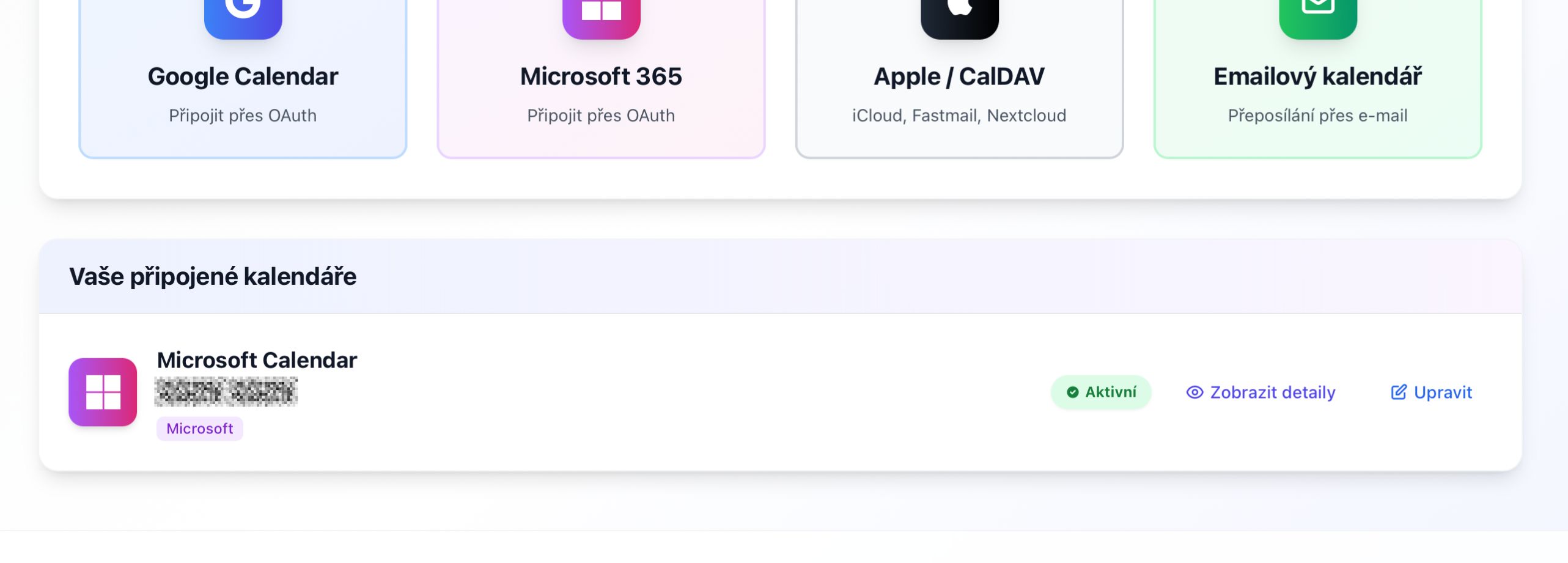 (öffnet das Bild in voller Größe)
Connected calendars list with Microsoft 365 showing Active status
Common issues
“Your organization needs to approve this app”
Why this happens: Your IT department has restricted which apps can access company data.
Solution:
- Contact your IT administrator or help desk.
- Ask them to approve “SyncMyDay” in the Microsoft 365 admin center.
- Or request an exception for your account.
This is common in larger organizations and is a security best practice.
Connection shows “Error” status
Common causes:
- Your password was changed.
- Multi-factor authentication settings changed.
- Organization revoked access.
Solution: Click the Refresh button to re-authenticate, or disconnect and reconnect the calendar.
Can't see a shared calendar
Shared calendars should appear if they're added to your Outlook. If missing:
- Make sure the calendar is visible in Outlook web or app.
- Disconnect and reconnect your Microsoft account.
- Ensure you have at least “Can view all details” permission.
Nächste Schritte
Technische Details
Für Entwickler und IT
Microsoft Graph API
SyncMyDay uses the Microsoft Graph API with these permissions:
Calendars.ReadWrite— read and write calendar eventsoffline_access— maintain access when the user is offline
OAuth 2.0 authentication
We use the standard OAuth 2.0 authorization code flow:
- Supports both personal Microsoft accounts and Azure AD accounts.
- Tokens are refreshed automatically every 60 minutes.
- Refresh tokens are valid for 90 days (automatically renewed).
Real-time synchronization
Microsoft Graph change notifications (webhooks) enable instant sync:
- Subscriptions are created for each connected calendar.
- Notifications are received within 2–3 minutes of changes.
- Subscriptions are renewed every 3 days automatically.
- Fallback polling occurs every 15 minutes if webhooks fail.
Enterprise admin consent
IT administrators can pre-approve SyncMyDay for all users:
- Go to Azure AD Portal → Enterprise Applications.
- Search for “SyncMyDay” or add it via App ID.
- Grant admin consent for the organization.
- Users can then connect without approval prompts.
API throttling
Microsoft Graph has the following limits:
- Per app: 10,000 requests per 10 minutes
- Per user: 2,000 requests per second
SyncMyDay's webhook-based architecture minimizes API calls and stays well within limits.
Data residency
Your calendar data remains in Microsoft's data centers. SyncMyDay only stores:
- Calendar IDs and names
- Event start/end times (no titles or descriptions)
- Encrypted OAuth tokens
Hat es nicht geklappt? Schreiben Sie uns, wir helfen Ihnen.