E-Mail-Kalender verbinden
An email calendar is a way to sync calendars by forwarding calendar invitations (.ics files) via email. This is perfect for calendars that don't have API access or when you want to keep certain calendars completely separate.
When to use email calendars
Great for
- Calendars without API support
- Legacy email clients (Thunderbird, Lotus Notes)
- Receiving blocker invites in your email inbox
- Simple one-way synchronization
- Maximum privacy (events via secure email only)
Consider alternatives if
- You need real-time sync (email has delays)
- Your calendar supports API access (Google, Microsoft)
- You need two-way synchronization
- You want automatic acceptance (email calendars require manual actions)
Two ways to use email calendars
Receive blockers via email
When you have events in Google/Microsoft calendar, SyncMyDay sends email invitations to any email address you specify. You can accept these invitations in your email client (Outlook, Thunderbird, etc.) and they'll show up in your calendar.
Forward invites to SyncMyDay
Get a unique email address from SyncMyDay (like abc123@syncmyday.eu). When you receive calendar invitations at this address, SyncMyDay automatically creates blocker events in your other connected calendars.
Steps
-
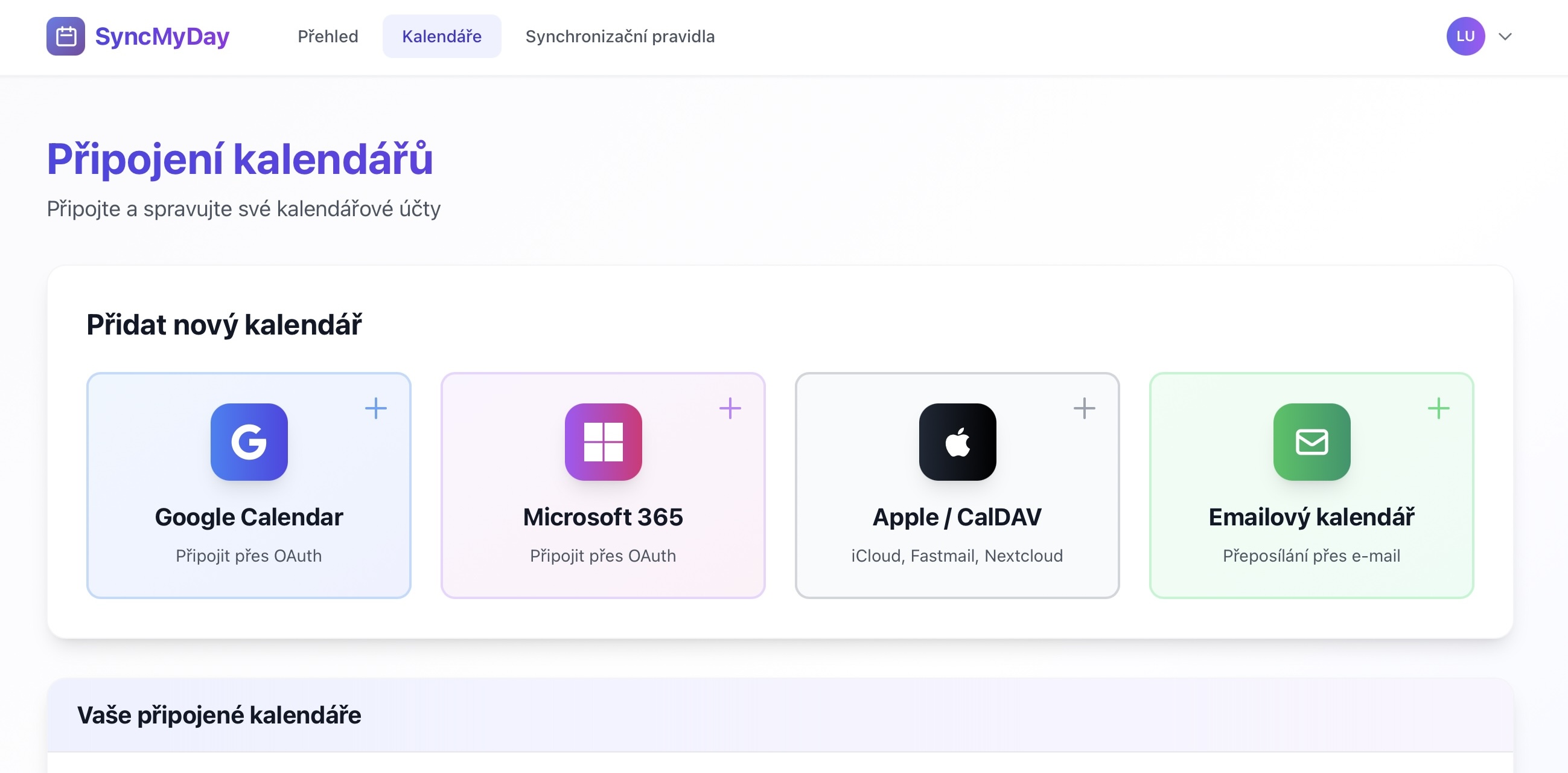
Go to Calendar Connections
Navigate to Calendars in the menu, or go to the Calendar Connections page.
 (öffnet das Bild in voller Größe)
Dashboard with Calendars menu highlighted -
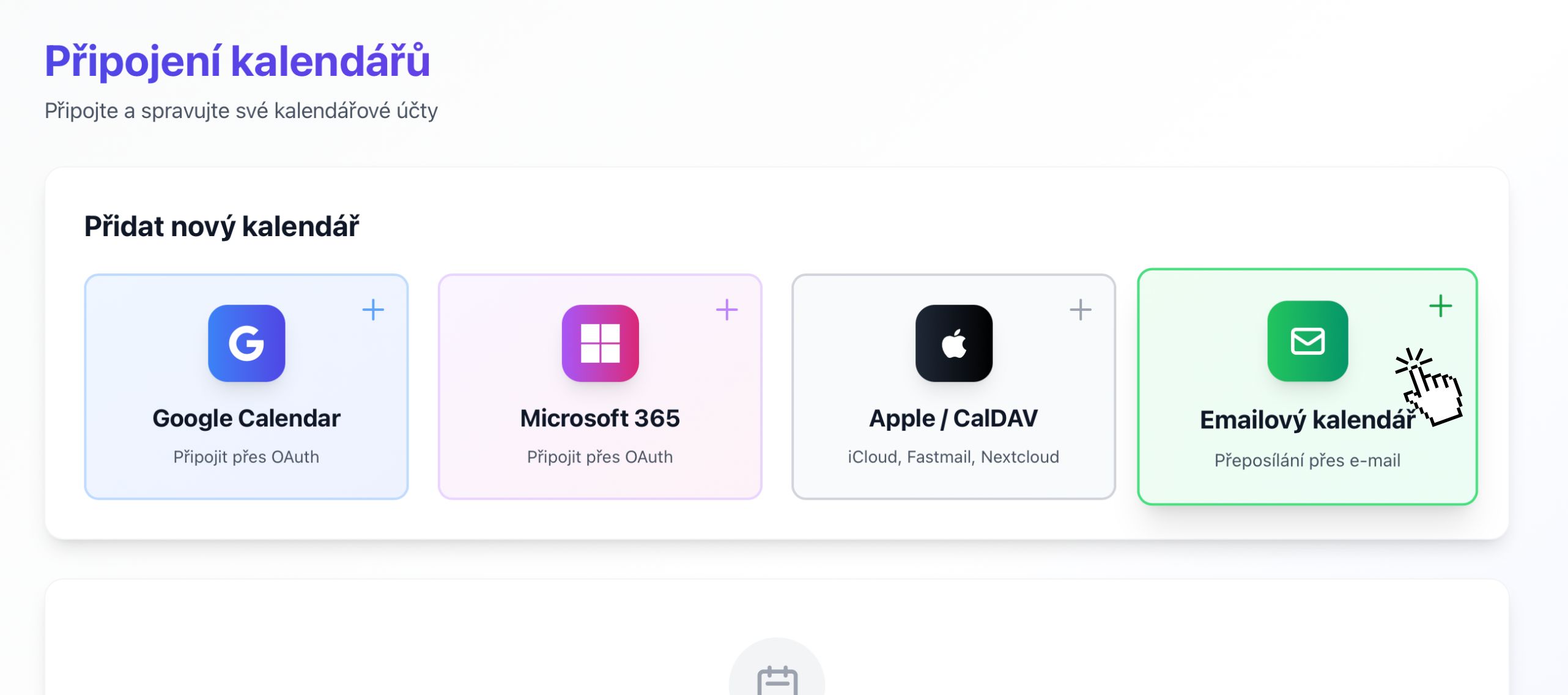
Click “Email Calendar”
Find and click the Email Calendar button with the envelope icon.
 (öffnet das Bild in voller Größe)
Calendar providers with Email Calendar option -
Choose your setup method
You'll see two options:
- Option A: Receive invitations. Enter an email address where you want to receive calendar invitations. This email should be connected to a calendar application (Outlook, Thunderbird, Apple Mail, etc.). Example:
mywork@company.com - Option B: Get a unique address. SyncMyDay generates a unique email address for you (like
abc123@syncmyday.eu). Forward calendar invitations to this address, and we'll process them automatically. No email input needed—just click “Generate Address”.
- Option A: Receive invitations. Enter an email address where you want to receive calendar invitations. This email should be connected to a calendar application (Outlook, Thunderbird, Apple Mail, etc.). Example:
-
Give it a name
Enter a friendly name for this email calendar, such as:
Work Email CalendarThunderbird CalendarOutlook Desktop
This helps you identify which email calendar is which if you create multiple.
-
Save and connect
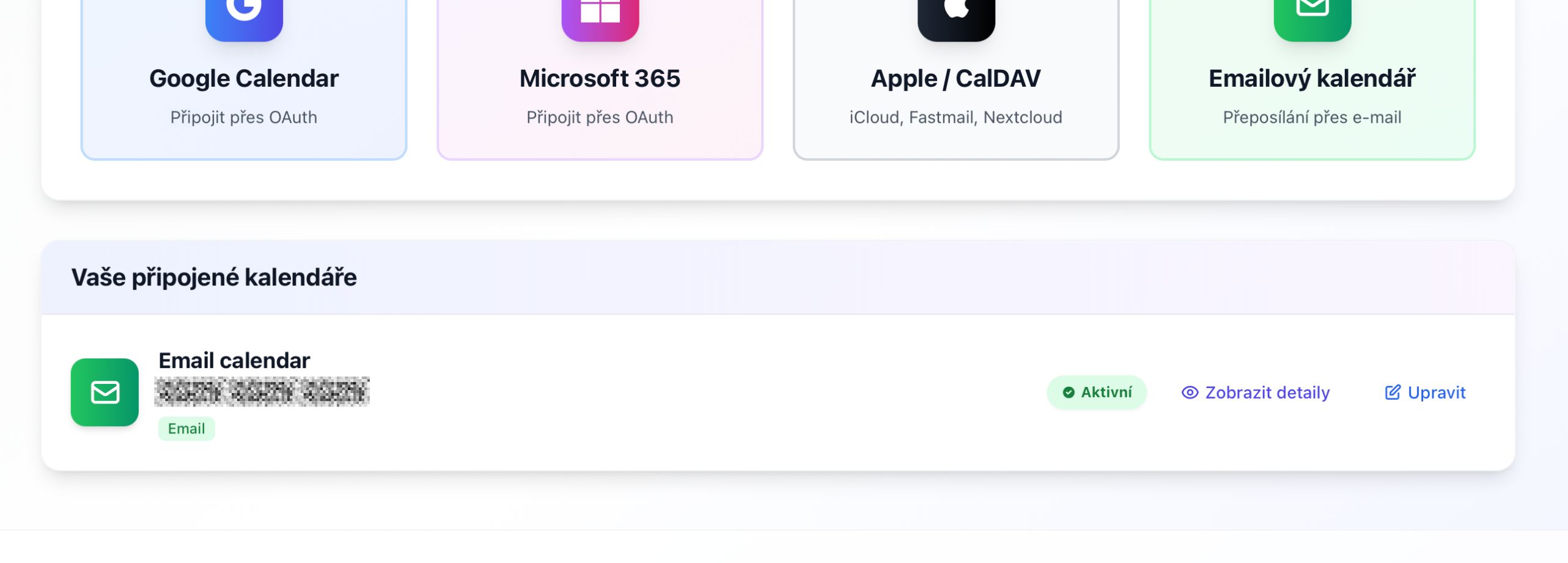
Click Connect or Save. Your email calendar will appear in your connections list.
 (öffnet das Bild in voller Größe)
Successfully connected email calendar
Setting up email forwarding (Option B)
If you chose to get a unique SyncMyDay address, you need to forward calendar invitations to it.
Gmail
- Go to Gmail Settings → See all settings.
- Click the Forwarding and POP/IMAP tab.
- Click Add a forwarding address.
- Enter your SyncMyDay address (e.g.,
abc123@syncmyday.eu). - Gmail will send a confirmation code to that address (check with us).
- Once confirmed, set up a filter to forward only calendar invitations.
Outlook / Microsoft 365
- Go to Outlook Settings → View all Outlook settings.
- Navigate to Mail → Forwarding.
- Enable forwarding and enter your SyncMyDay address.
- Save changes.
- Optionally, create a rule to forward only emails with
.icsattachments.
Other email clients
Most email clients support forwarding rules. Look for:
- Filters or Rules in settings
- Create a rule: “When message has attachment with
.icsextension” - Action: “Forward to
your-syncmyday-address@syncmyday.eu”
Creating sync rules with email calendars
Once your email calendar is connected, you can use it in sync rules.
As a target (receive invites)
Example: Google Calendar → Email Calendar
- Source: your Google work calendar
- Target: email calendar with
personal@example.com - Result: you receive email invitations for all work events at your personal email
As a source (forward invites)
Example: Email Calendar → Google Calendar
- Source: email calendar with unique address
- Target: your Google work calendar
- Result: calendar invites sent to your unique address appear as blockers in Google
How email calendar sync works
When events are created in your source calendar, SyncMyDay sends email invitations to a special address. Those invitations automatically show up as blocker events.
- Event created in source calendar. An event is created in your source calendar (e.g., Google Calendar).
- SyncMyDay detects change. We receive a webhook notification (for API calendars) or poll for changes (CalDAV/Email).
- Email invitation sent. An email with a
.icsattachment is sent to your email calendar address. - Event appears in email client. Your email client (Outlook, Thunderbird, etc.) receives the invitation and shows it in your calendar.
Common questions
Do I need to manually accept email invitations?
It depends on your email client settings. Most email clients can be configured to automatically accept calendar invitations. Check your calendar settings for “Automatically accept meeting requests” or similar options.
How fast is email calendar sync?
Email delivery is usually fast (within minutes), but it depends on email server delays. If you need instant synchronization, consider using Google Calendar or Microsoft 365 which support real-time webhooks.
Can I use the same email address for multiple email calendars?
Yes. You can create multiple email calendars that all send to the same email address. This is useful if you want to receive blockers from different source calendars in one place.
What if I stop receiving emails?
Check these potential issues:
- Email caught in spam folder
- Email forwarding rule disabled or broken
- Email calendar connection inactive (check Connections page)
- Sync rule paused or deleted
Nächste Schritte
Technische Details
Für Entwickler und IT
iCalendar format (RFC 5545)
Email invitations use the iCalendar (.ics) format:
- Standard MIME type:
text/calendar - Contains
VEVENTcomponents with event data - Includes
VTIMEZONEfor timezone information - Uses
METHOD:REQUESTfor invitations
Email sending
Outgoing email invitations:
- Sent via Laravel Mail system (SMTP, Mailgun, SendGrid, etc.)
- From address:
events@syncmyday.eu - Attachment:
event.icsfile
Email receiving (inbound)
For unique SyncMyDay addresses:
- IMAP polling: checks mailbox every minute
- Webhook support: Mailgun, SendGrid, Postmark
- Parses
.icsattachments - Extracts token from recipient address (e.g.,
abc123fromabc123@syncmyday.eu)
Event processing
- Parse
.icsfile forVEVENTcomponents - Extract
DTSTART,DTEND,SUMMARY,STATUS - Convert to internal event format
- Check sync rules and create blocker events
- Mark email as processed (move to “Processed” folder or delete)
Security
- Unique addresses are cryptographically generated tokens
- Token validation prevents unauthorized access
- Email content is sanitized before processing
- Only
.icsattachments are processed
Hat es nicht geklappt? Schreiben Sie uns, wir helfen Ihnen.